
Demand Supply Zone Alerts Indicator
Real-Time Demand & Supply Zone Alerts
- Home
- Demand Supply Zone Alerts Indicator
Other Service
More Information
Get real-time Demand and Supply zone alerts and never miss a trade! Track multiple scripts across timeframes, save time, and access our powerful Demand Supply Zone Indicator for free. Simplify your trading now!

Never Miss a Trading Opportunity Again!
Stay Ahead of the Market with Real-Time Demand Supply Zone Alerts.
Stay ahead of the market with real-time alerts for Demand and Supply zones. Our indicator eliminates the hassle of conventional scanners, saving you time and ensuring you never miss quality setups. Monitor multiple scripts across timeframes, receive live alerts, and enjoy complimentary access to our Demand Supply Zone Indicator.
Why Choose Demand Supply Zone Alerts?
Applicable to any market available on TradingView, including stocks, forex, commodities, and cryptocurrencies.
Are you tired of missing profitable trade setups or wasting time scanning through numerous scripts? Our Demand Supply Zone Alerts indicator solves this problem by providing real-time notifications for high-potential trade setups based on the proven Demand and Supply methodology. Whether you’re a beginner or a seasoned trader, our alerts ensure you stay informed and make smarter trading decisions.
Real-Time Alerts
Receive instant notifications for Demand Supply zones directly on TradingView, so you’re always ahead of the market.
Multi-Script Monitoring
Our service scans multiple scripts across multiple timeframes, ensuring no opportunity is missed.
Precision and Accuracy
Unlike conventional scanners, our alerts are purely based on the Demand Supply methodology, no lagging indicators or oscillators involved.
Save Time
Get a curated list of scripts with quality zone setups, eliminating the need to scan through large watchlists.
Market Versatility
Applicable to any market available on TradingView, including stocks, forex, commodities, and cryptocurrencies.
Complimentary Indicator Access
During your subscription, enjoy access to our Demand Supply Zone Indicator with built-in alert features for added convenience.
Pre-requisites:
- You must have already received an activation email or a notification on TradingView confirming that the indicator has been activated for your account.
- Ensure you are logged into your TradingView account to save and use the indicator: LOGIN
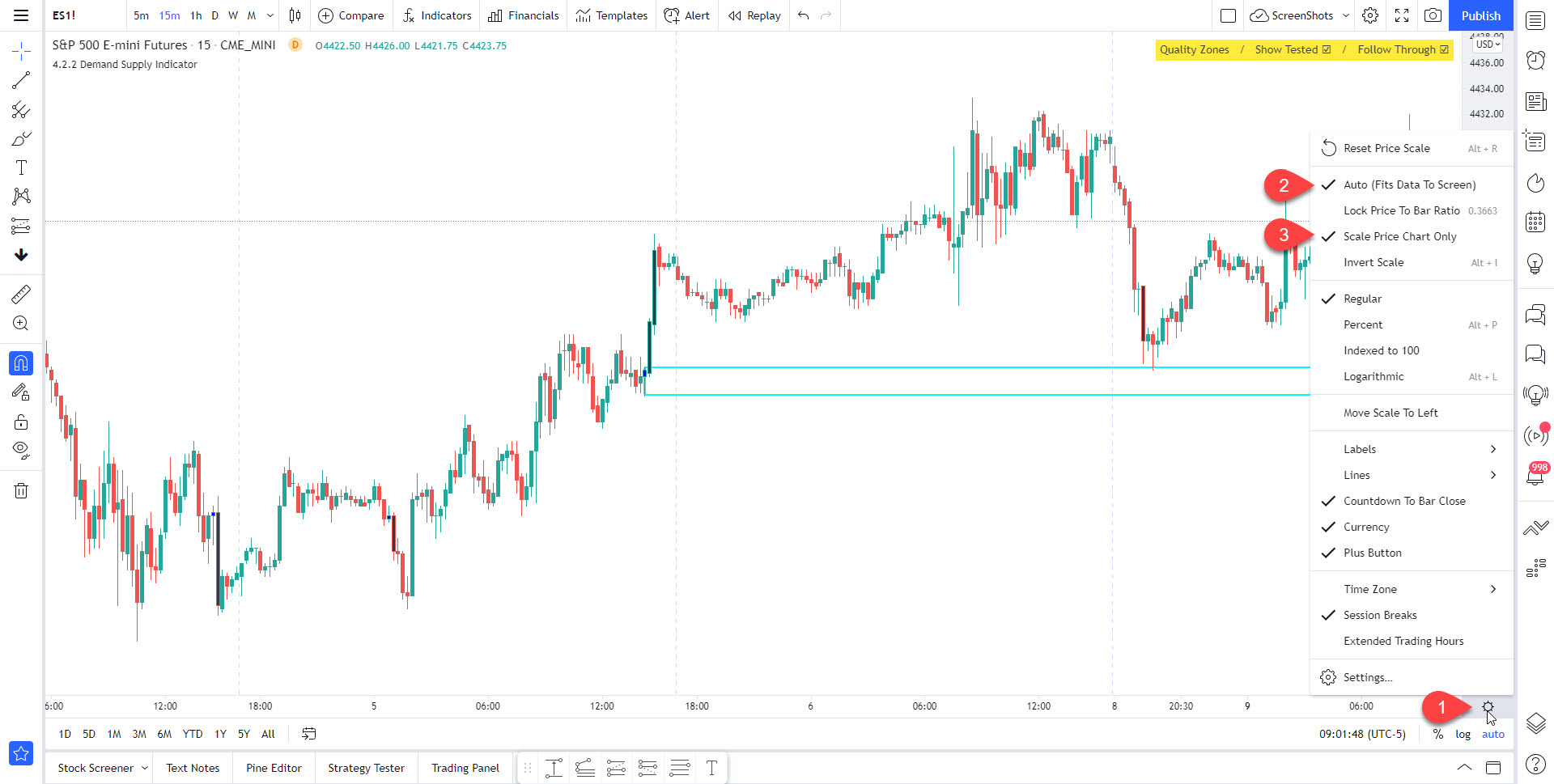
Avoid Chart Compression:
To ensure optimal chart performance, please adjust your settings as shown below:
Step-by-Step Tutorial to Add the Demand Supply Zone Alerts Indicator to Your TradingView Charts
(For placing alerts on multiple symbols)
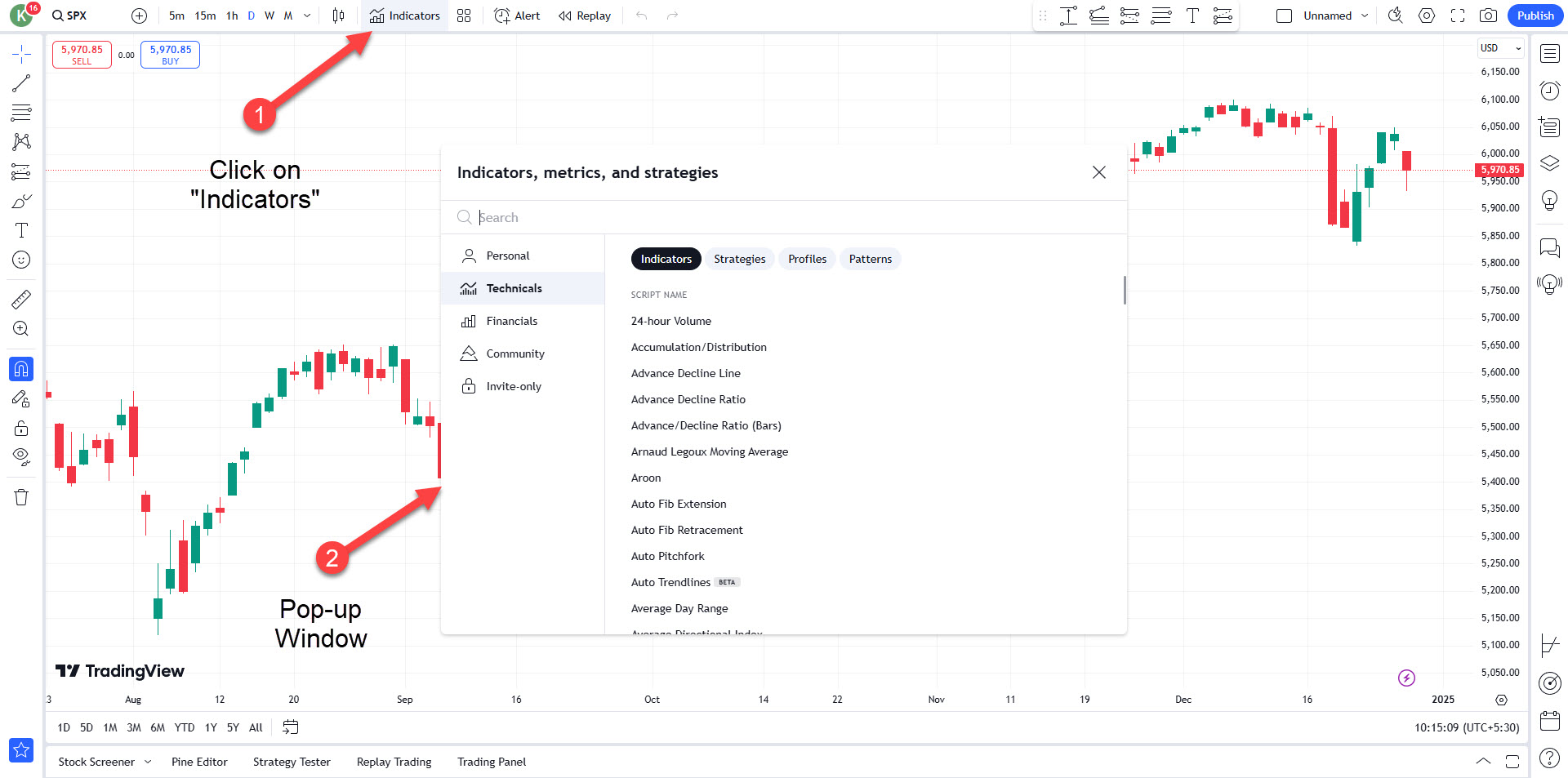
Step 1: Open the Chart (Candlestick Chart)
- Open the chart for the market (e.g., Stocks, Forex, Commodities) you want to analyze.
- Locate the “Indicators” button at the top of the chart window and click on it.
- A pop-up window will appear.
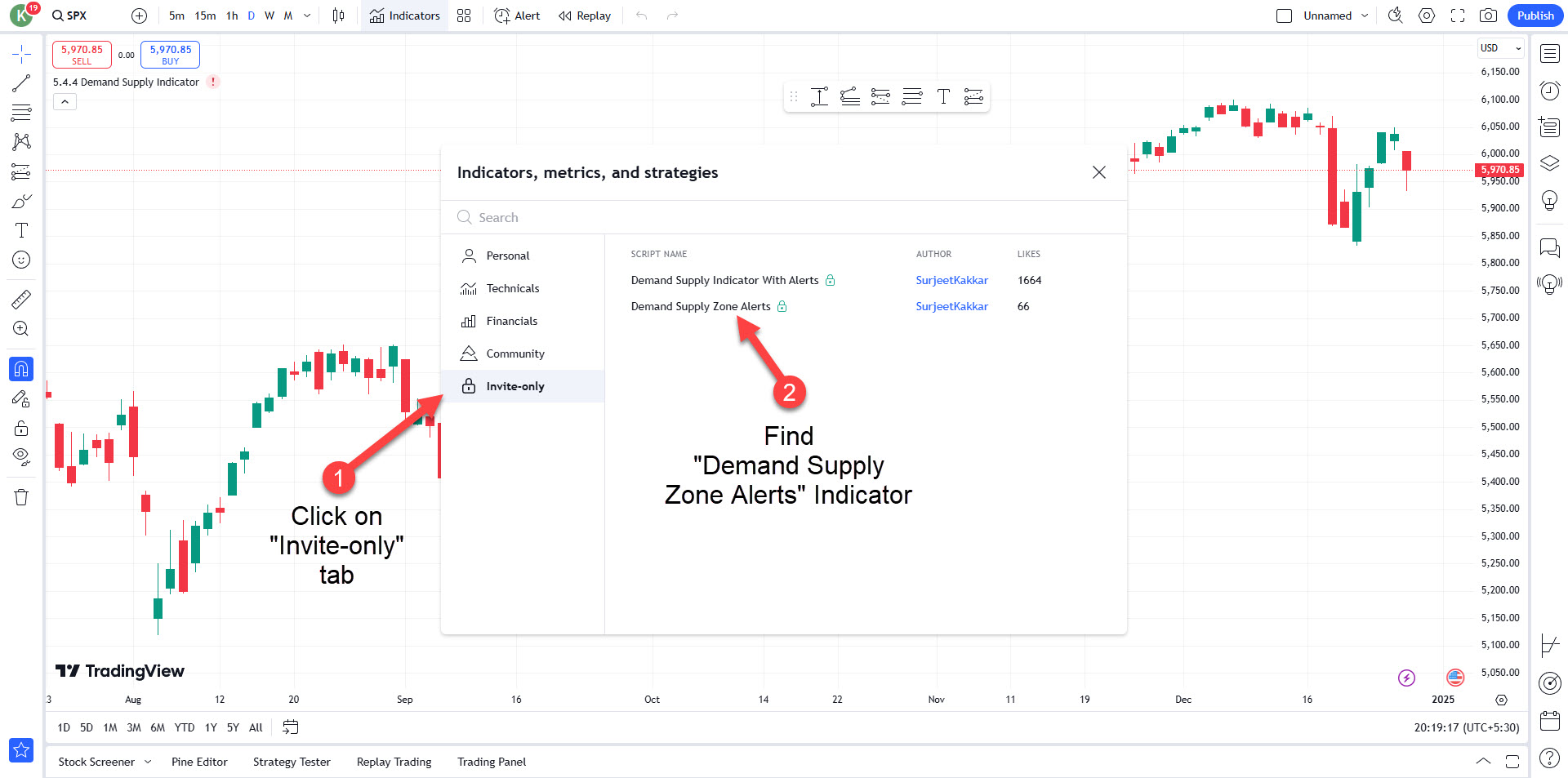
Step 2: Select the “Invite-only” Tab
- In the Indicators menu, navigate to the “Invite-only” tab.
- Look for the Demand Supply Zone Alerts Indicator in the list.
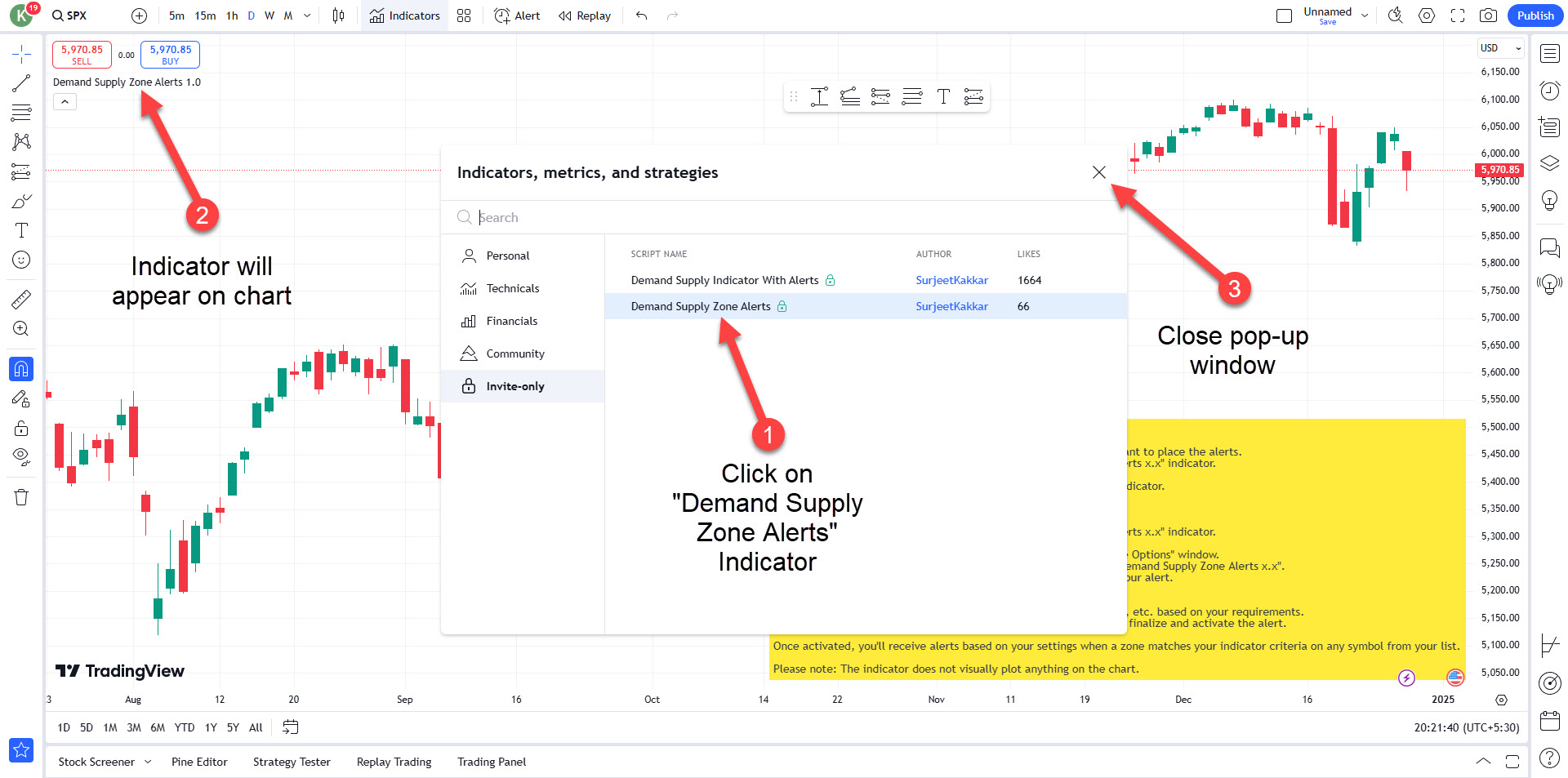
Step 3: Add the Indicator
- Click on the Demand Supply Zone Alerts Indicator to apply it to your chart.
- The indicator will now appear on your chart.
- Close the pop-up window.
Step 4: Steps to Set Alerts Using the Demand Supply Zone Alerts Indicator:
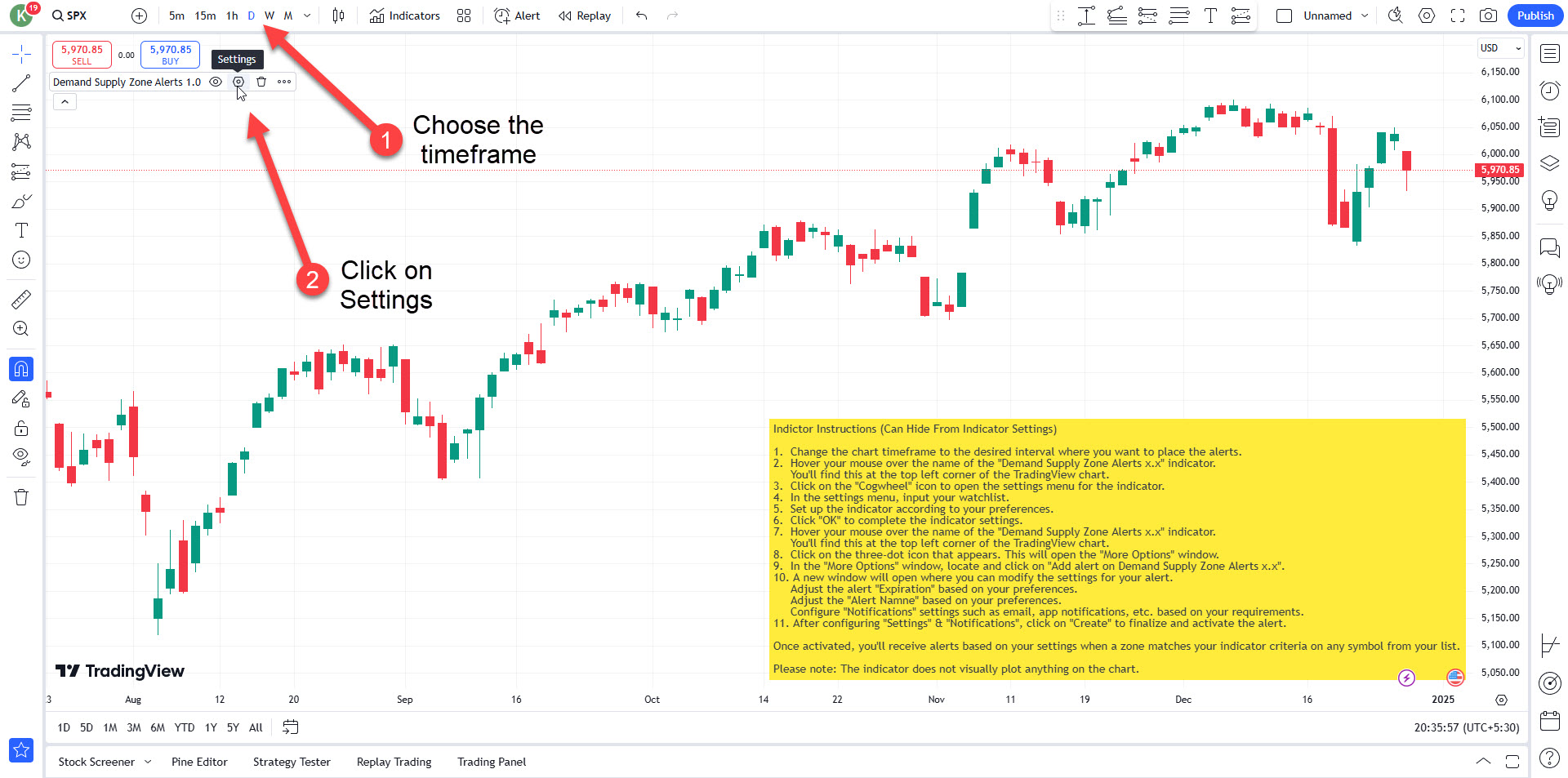
Choose the timeframe for which you want to place alerts.
After selecting the timeframe, click on the Settings option.
Step 5: Input Symbols and Customize Settings
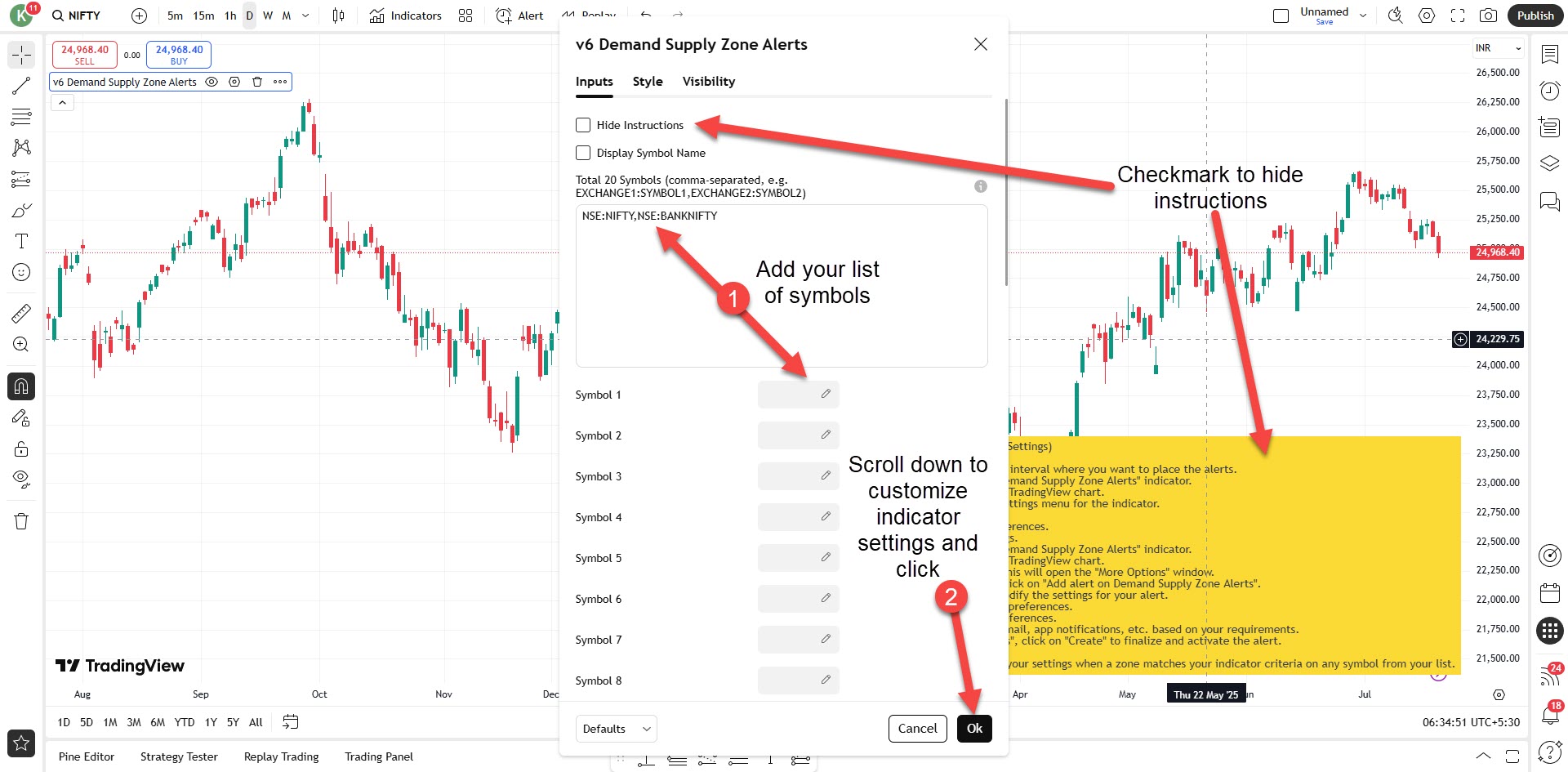
- Add your list of symbols.
- Customize the indicator settings according to your preference and click OK to save your list of symbols and customized settings.
Step 6: Access More Options
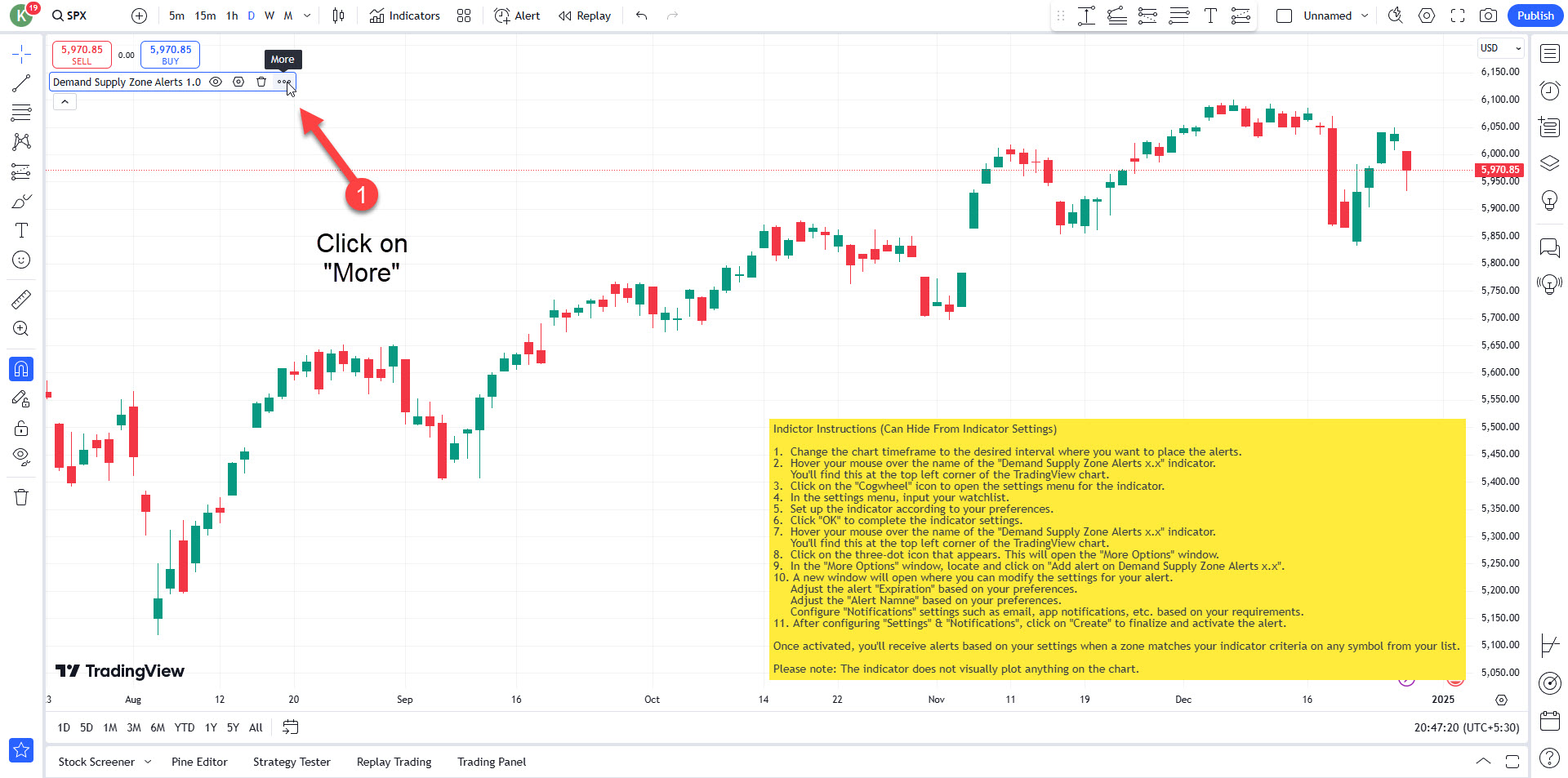
Click on More.
Step 7: Add Alerts
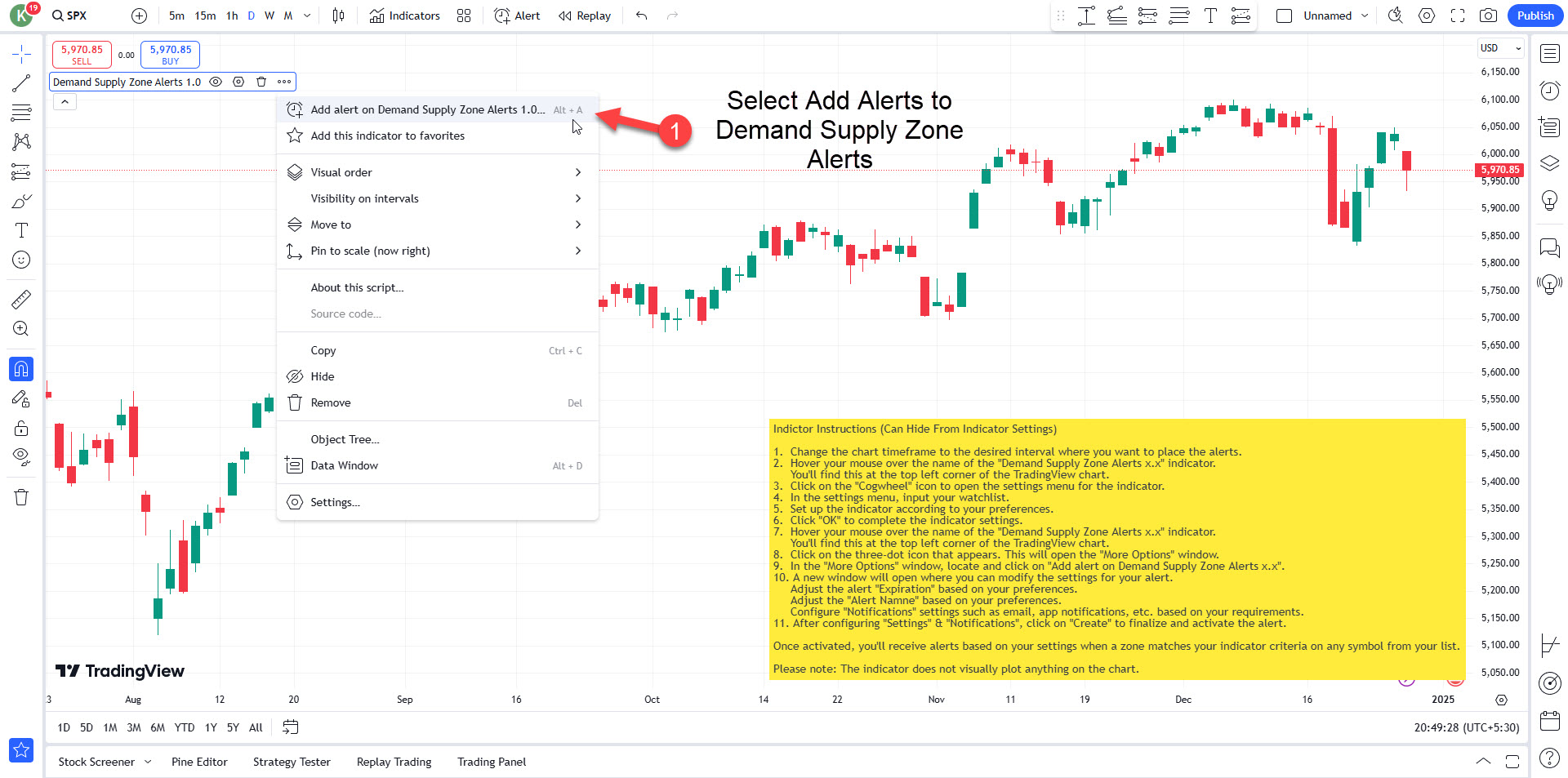
Select Add Alerts to Demand Supply Zone Alerts.
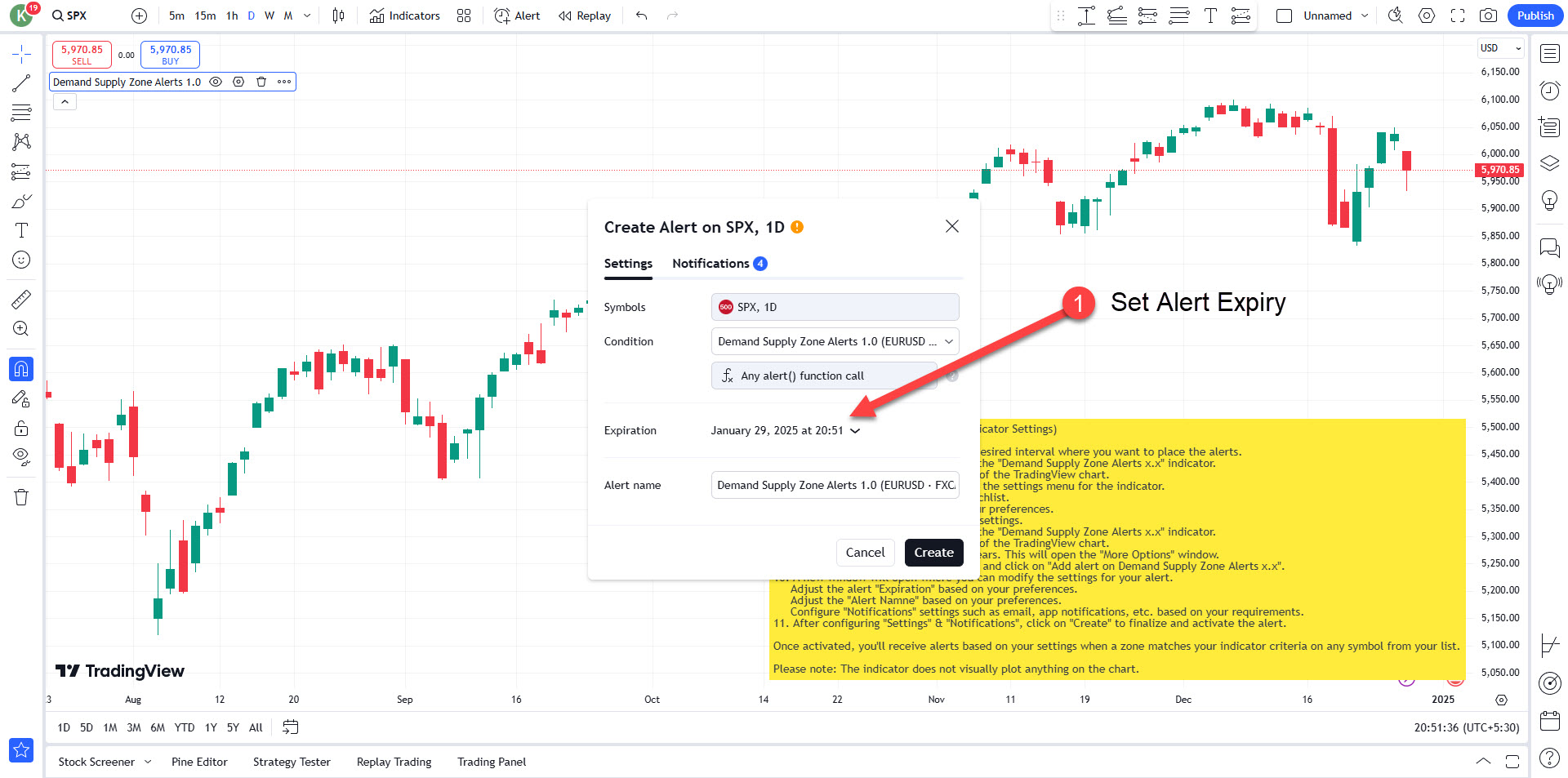
Step 8: Set Alert Expiry
Choose the duration for how long the alert should remain active.
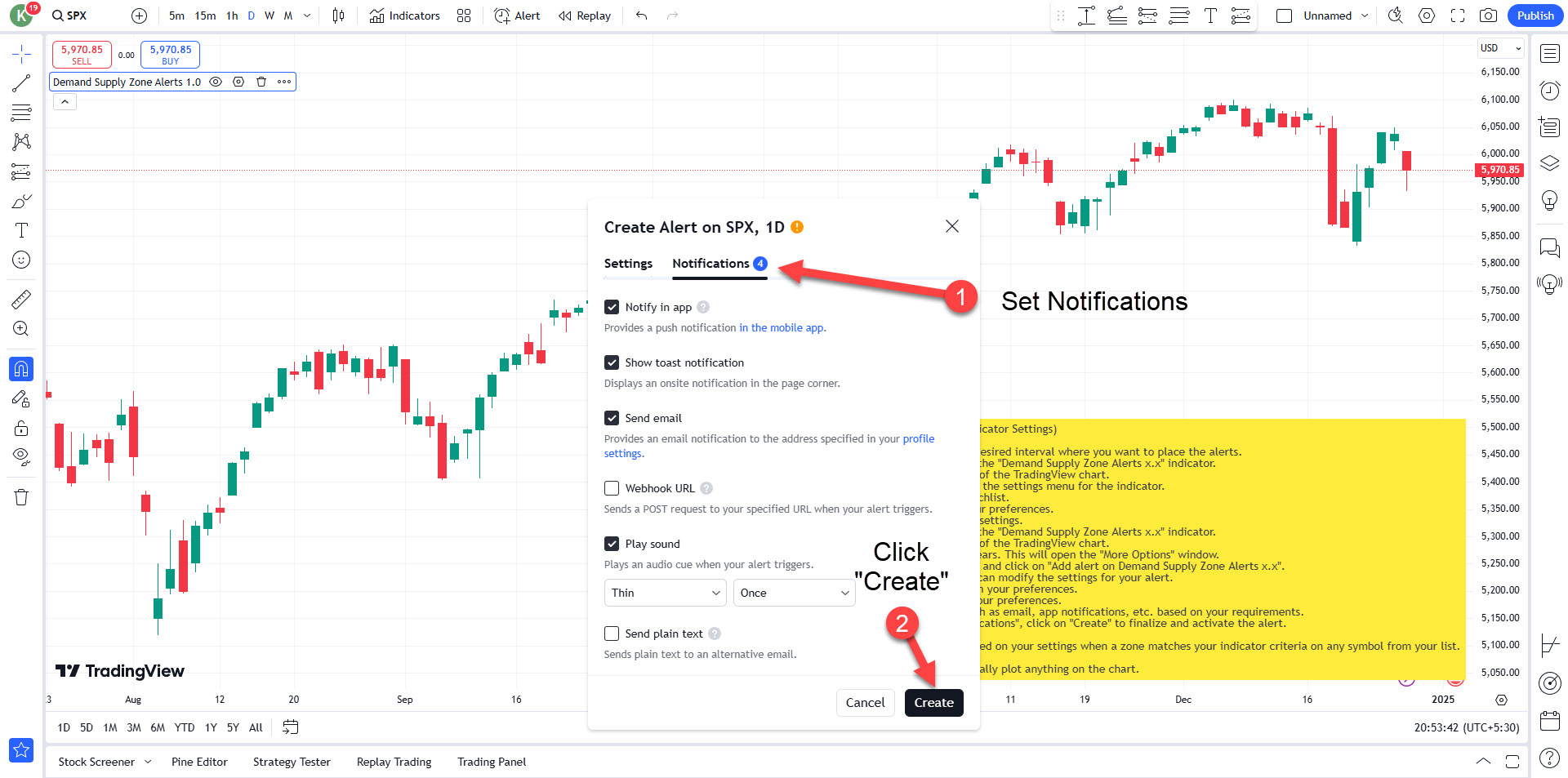
Step 9: Configure Notifications
Set your alert notification preferences.
Click Create to finalize the alert.
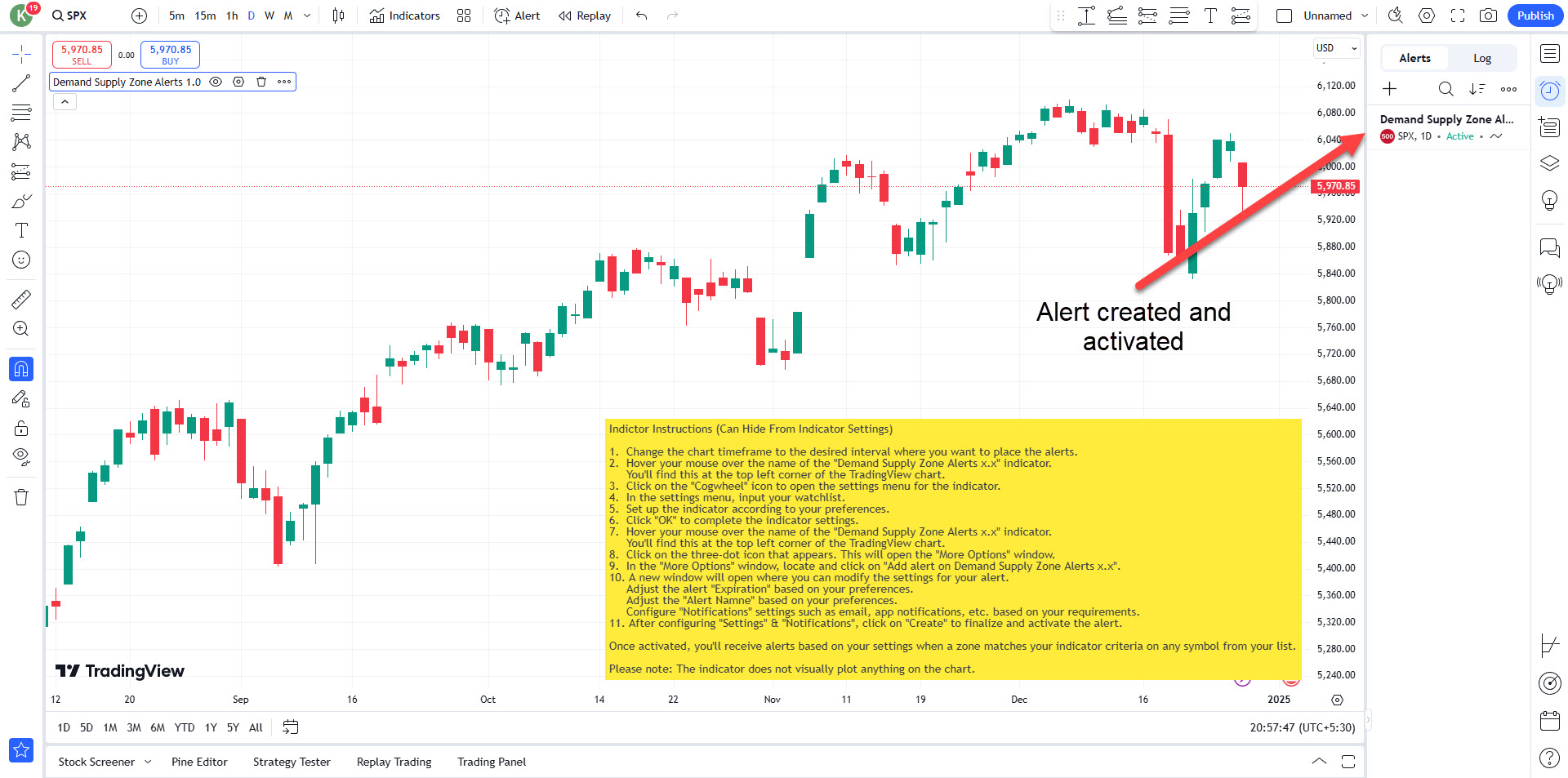
Alert Created and Activated
Outcome:
Once the alert is created and activated:
- Whenever a demand or supply zone matching your indicator settings forms on any symbol from your input list, and within the selected timeframe, an alert will be generated.
- You will be notified based on your selected notification settings.
Step-by-Step Tutorial to Add the Demand Supply Indicator with Alerts to Your TradingView Charts
(for plotting zones on chart and placing alert on single symbol)
Step 1: Open the Chart (Candlestick Chart)
- Open the chart for the market (e.g., Stocks, Forex, Commodities) you want to analyze.
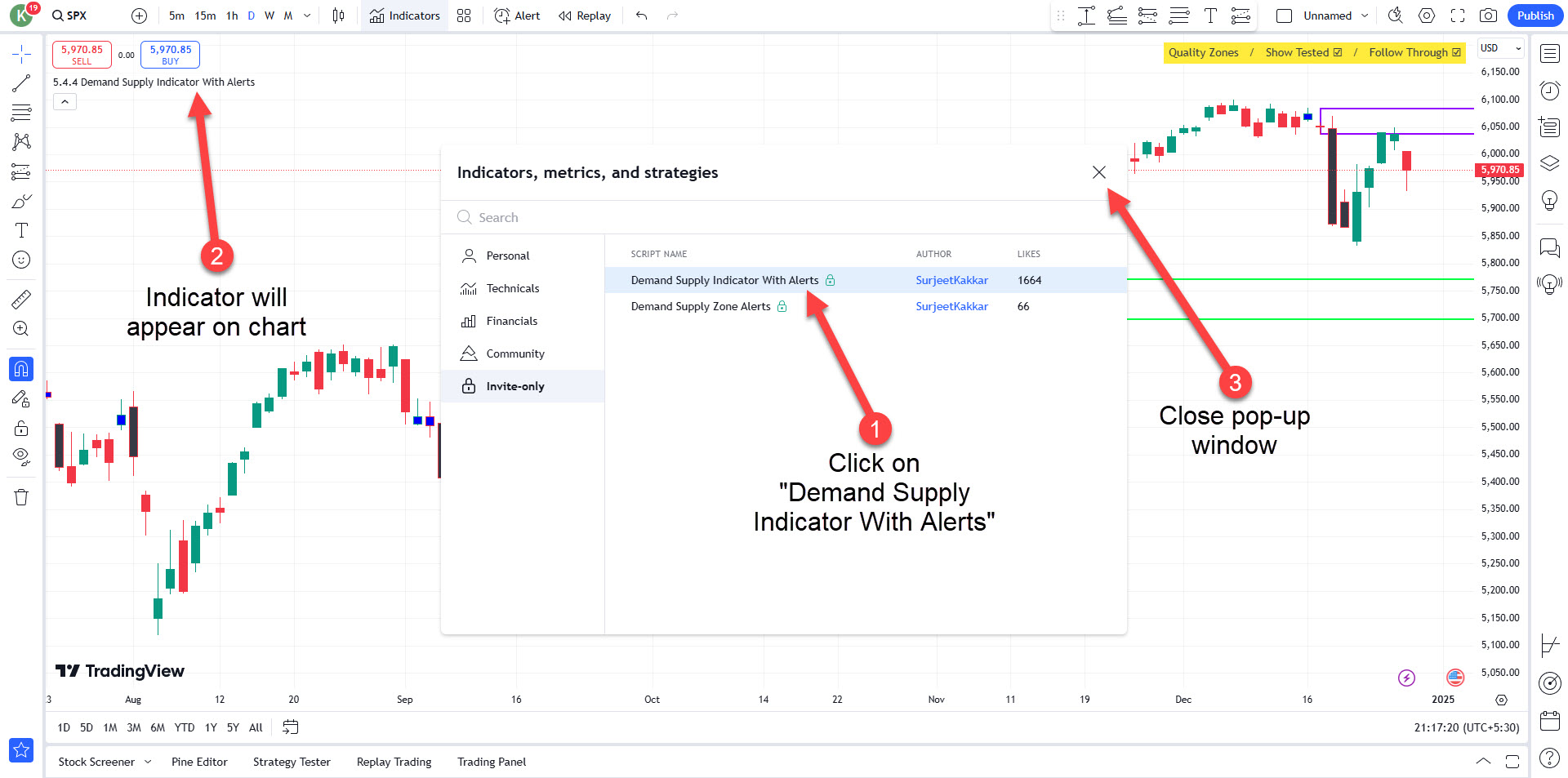
- Locate the “Indicators” button at the top of the chart window and click on it.
- A pop-up window will appear.
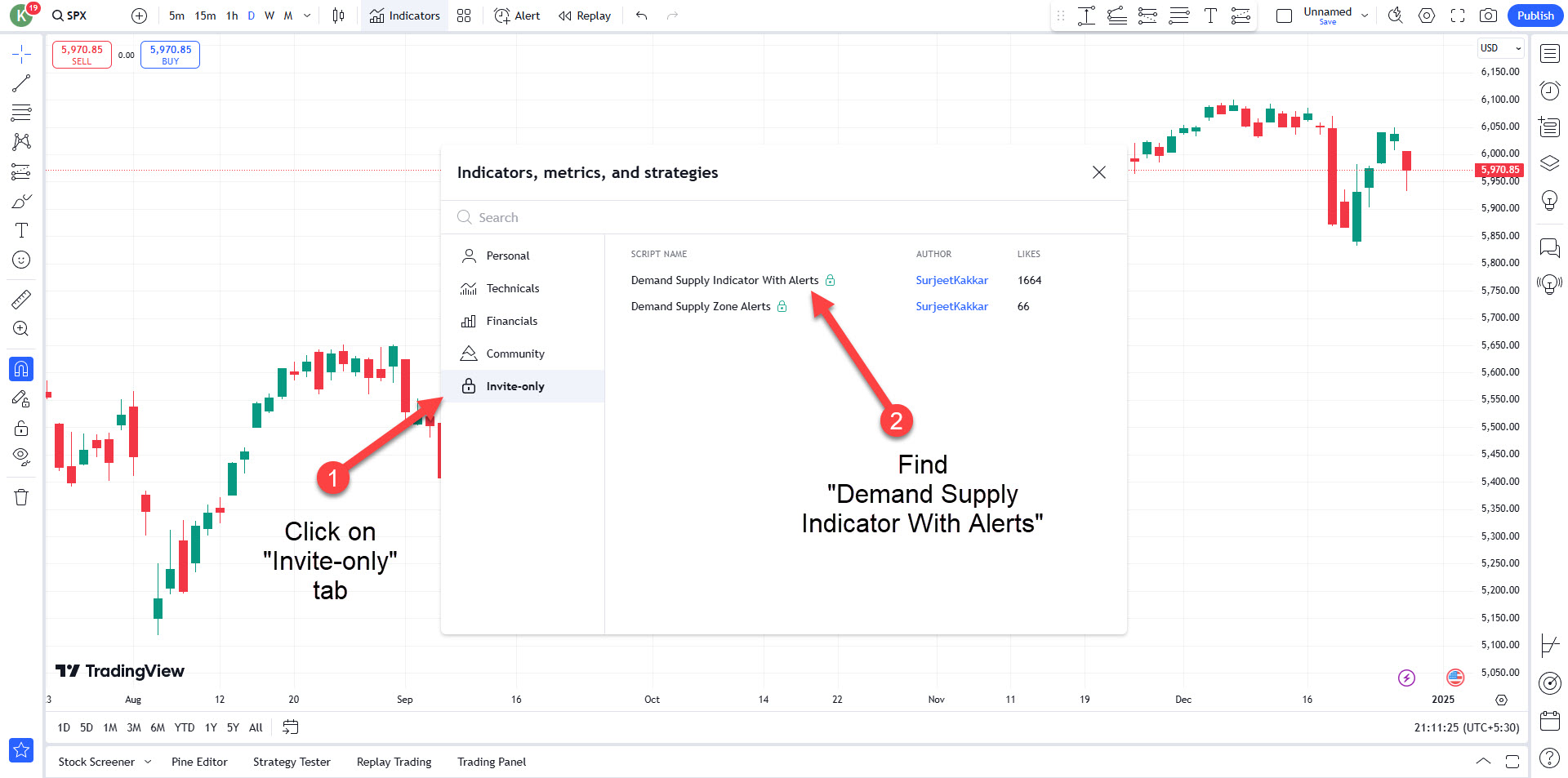
Step 2: Select the “Invite-only” Tab
- In the Indicators menu, navigate to the “Invite-only” tab.
- Look for the Demand Supply Indicator With Alerts in the list.
Step 3: Add the Indicator
- Click on the Demand Supply Indicator With Alerts to apply it to your chart.
- The indicator will now appear on your chart.
- Close the pop-up window.
Step 4: Steps to Set Alerts Using the Demand Supply Indicator With Alerts:
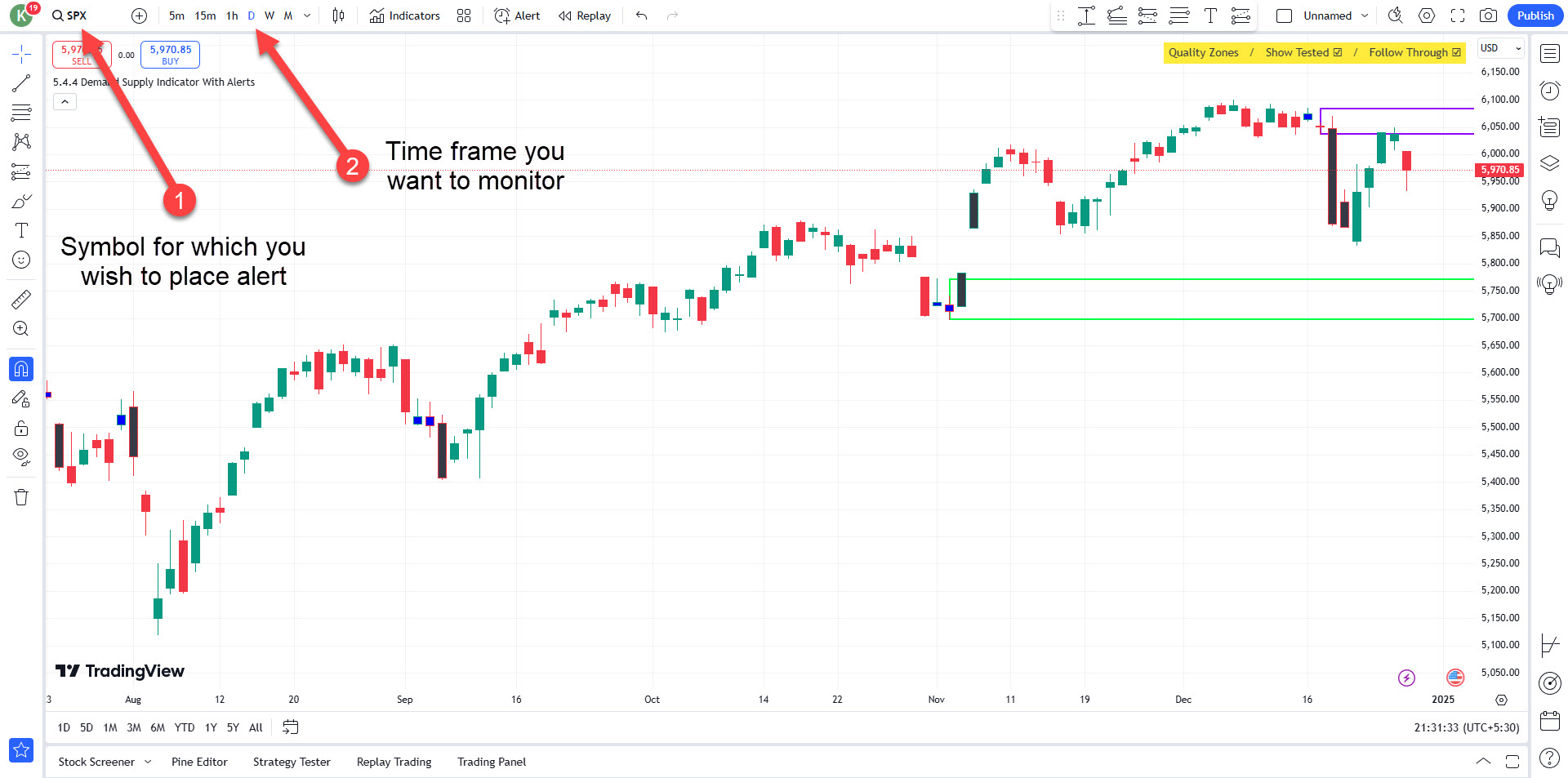
Ensure you are on the chart of the symbol you wish to place the alert for.
Set the time frame you want to monitor for the alert.
Step 5: Access More Options
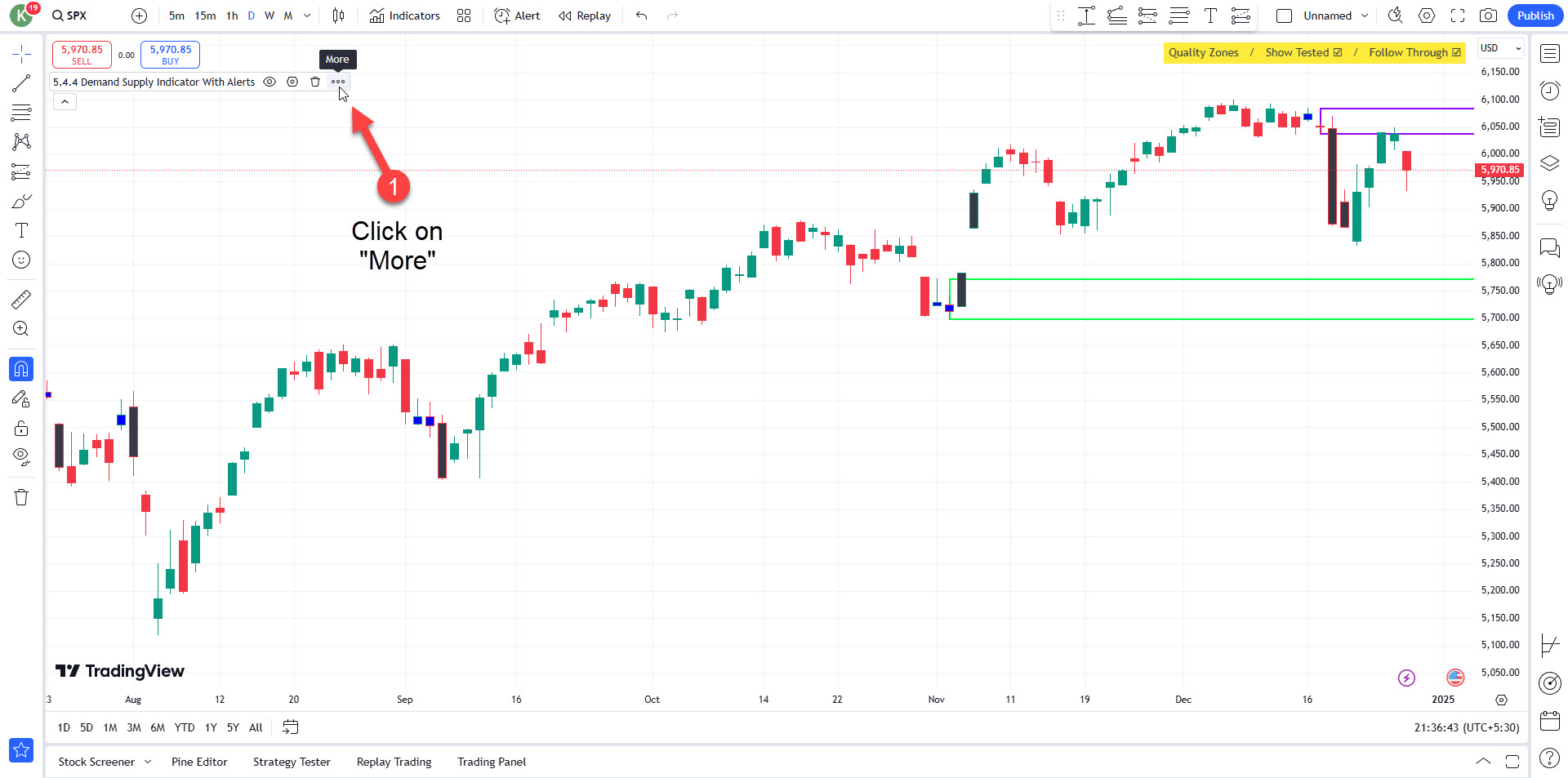
Click on the “More”.
Step 6: Add Alerts
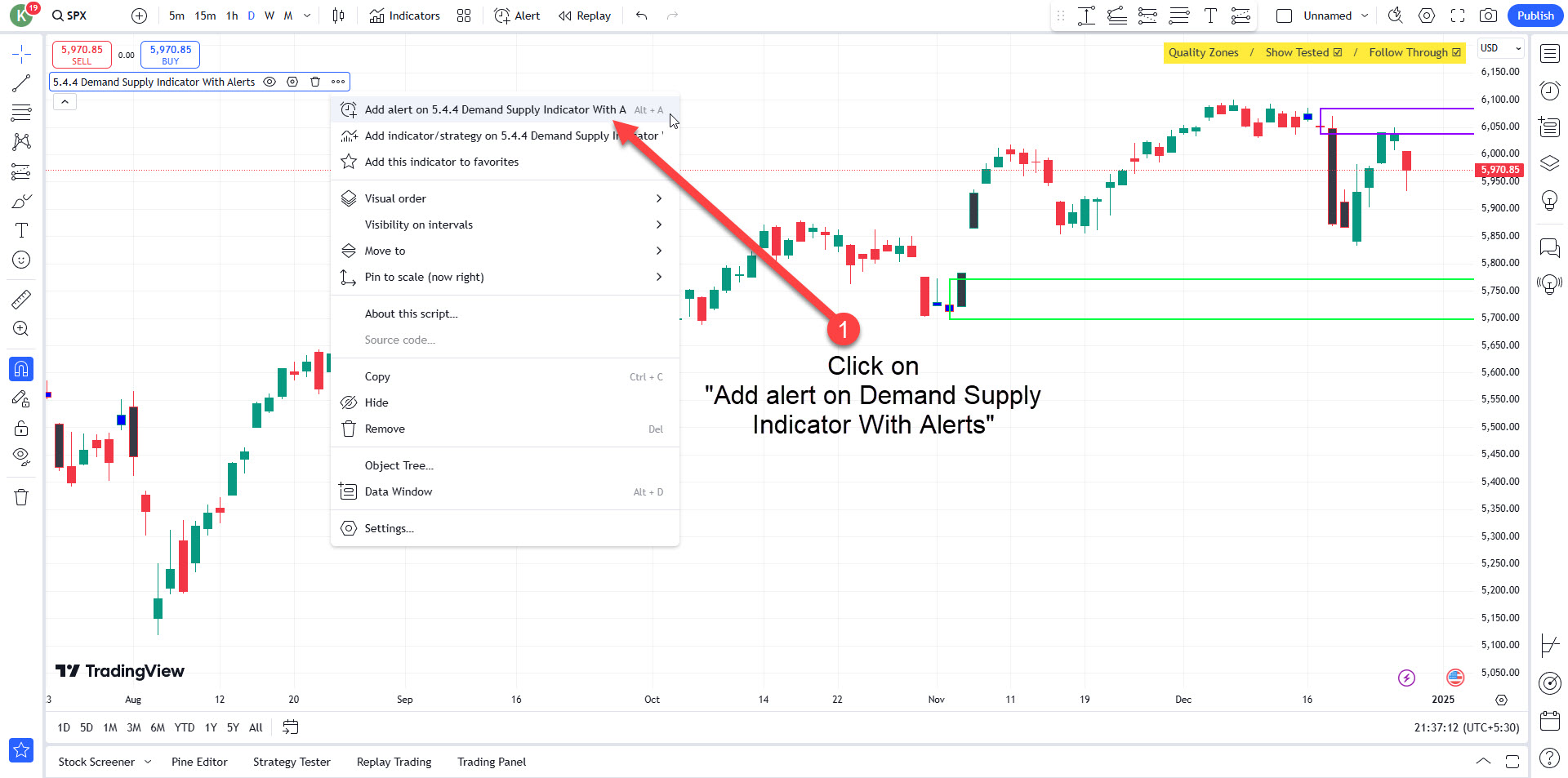
Click on “Add Alert on Demand Supply Indicator With Alerts”.
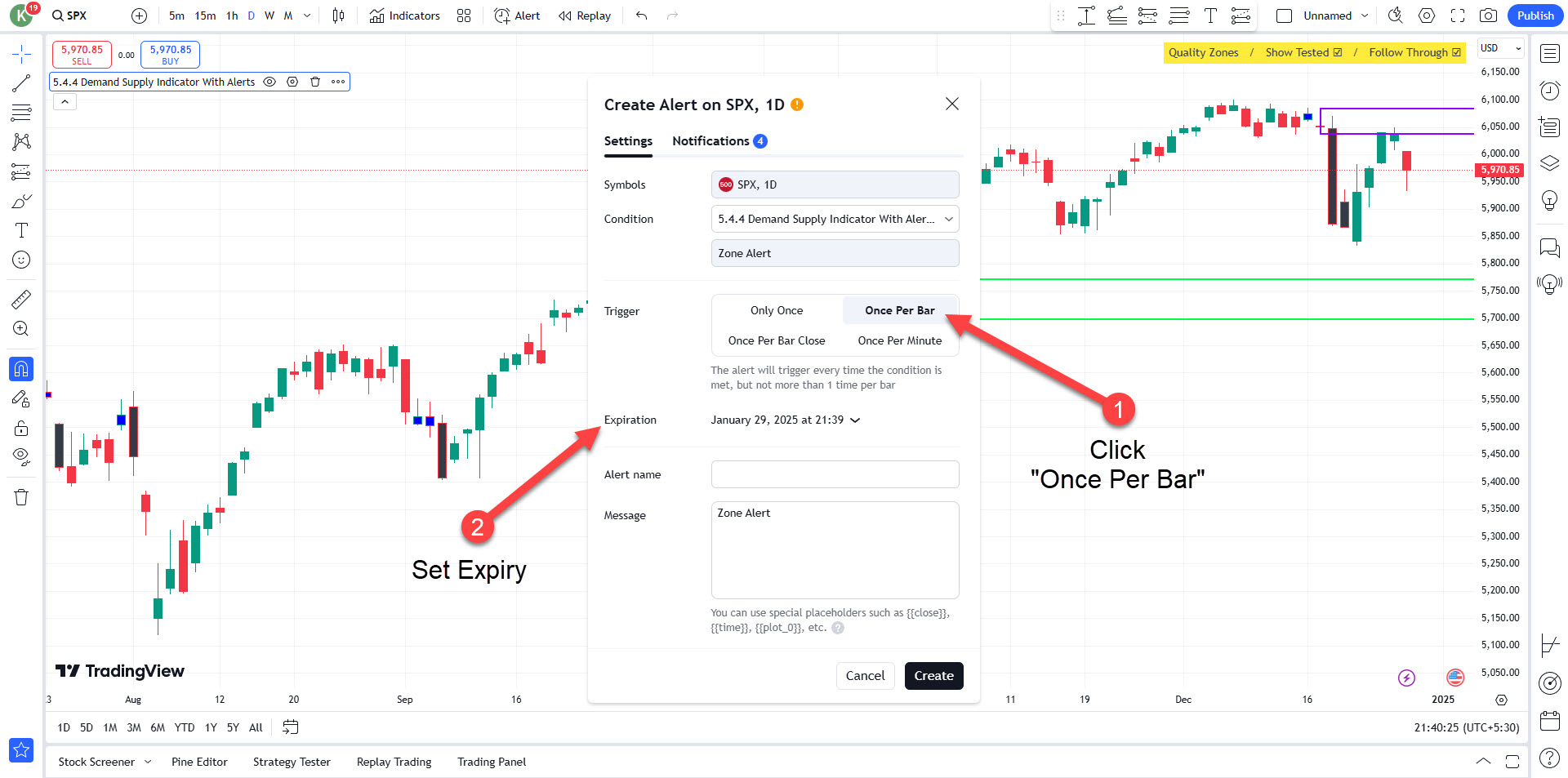
Step 7: Set Trigger Condition
Choose “Once Per Bar” as the trigger condition.
- Specify the expiration for the alert.
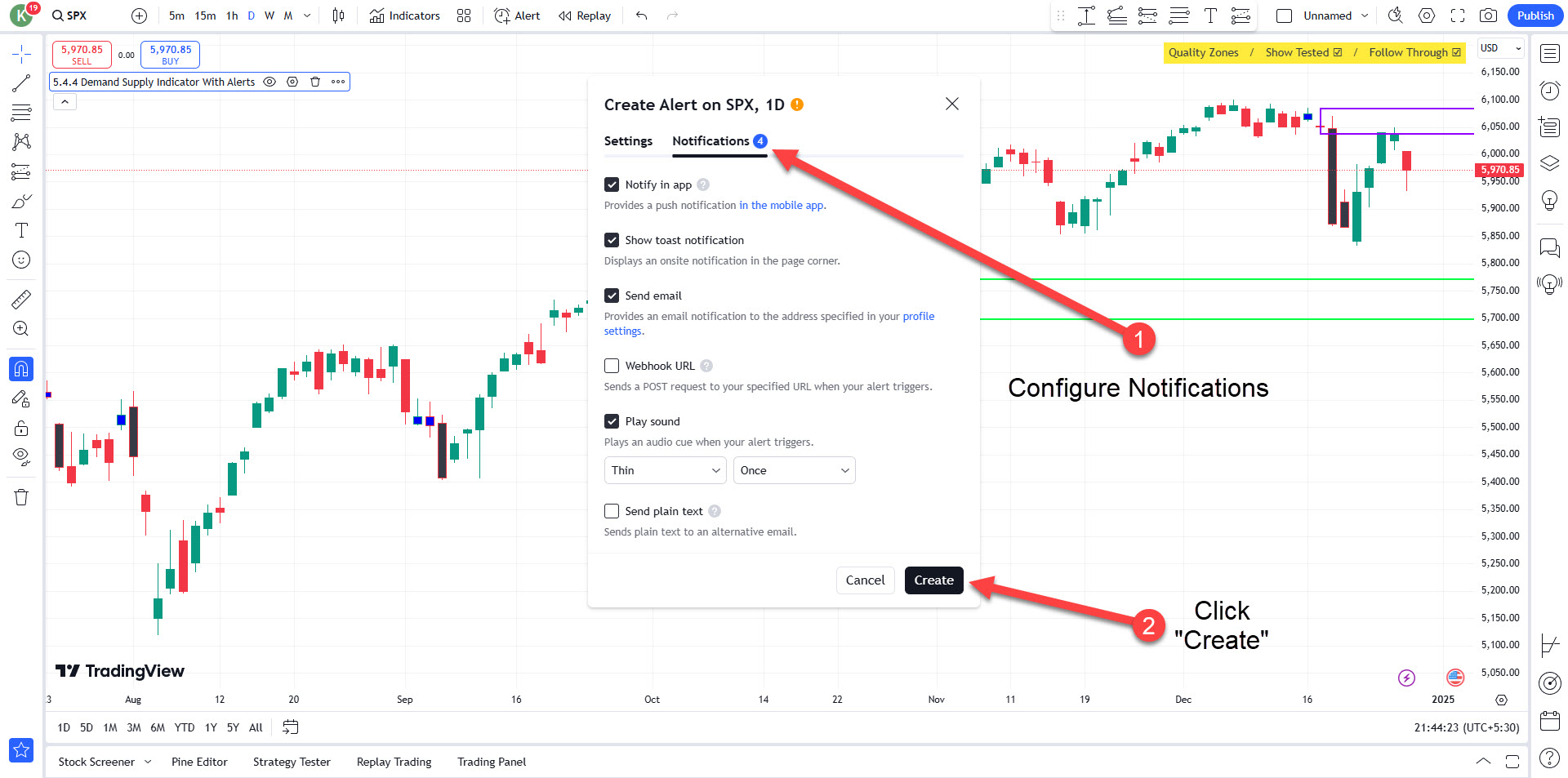
Step 8: Set Notifications
Configure how you want to be notified.
- Click on “Create” to activate the alert
Alert Created and Activated
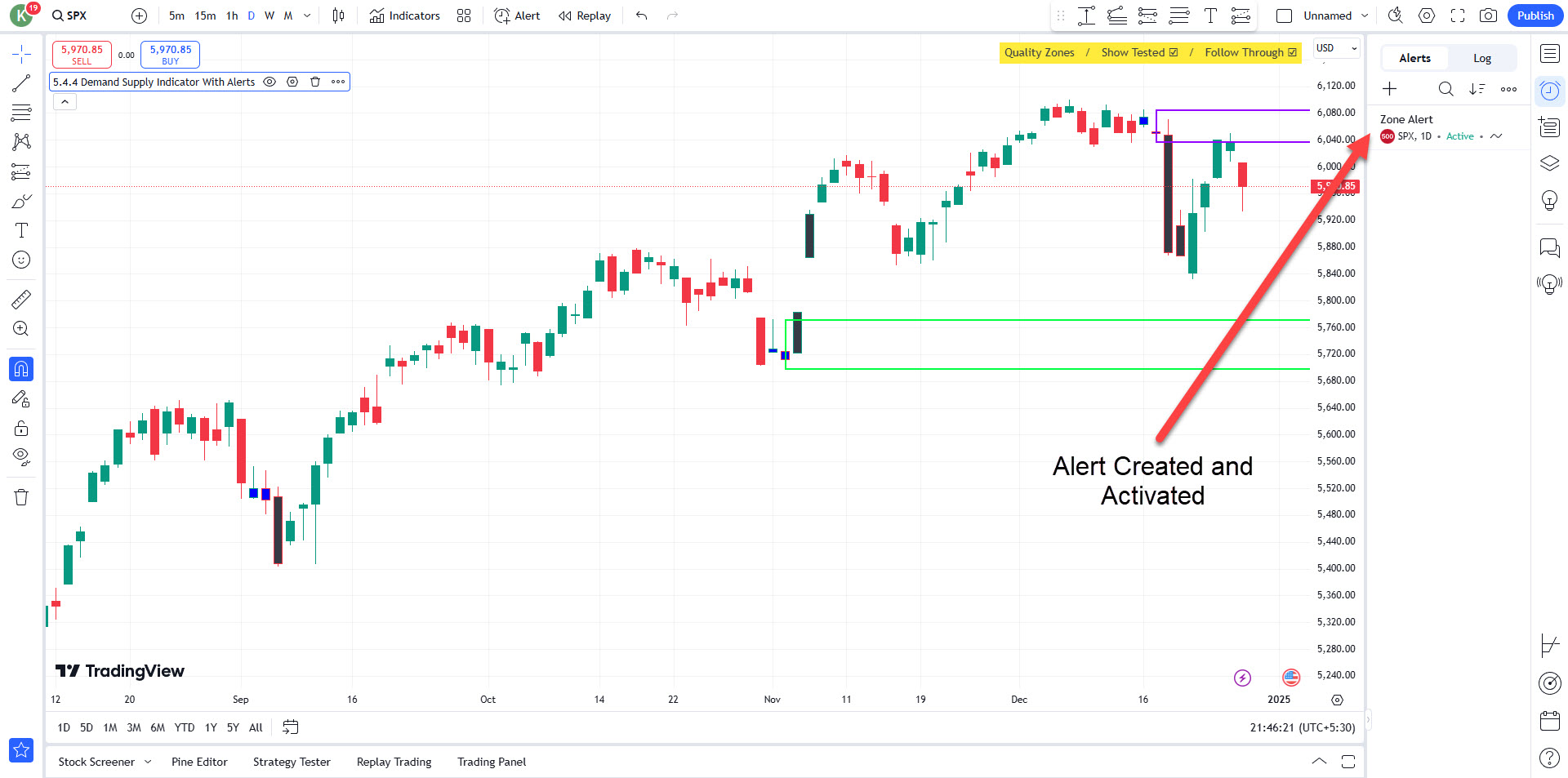
Outcome:
- The alert will monitor the selected symbol and time frame. When a demand or supply zone forms based on the indicator’s settings (at the time of placing the alert), you’ll receive a notification as per your configuration.
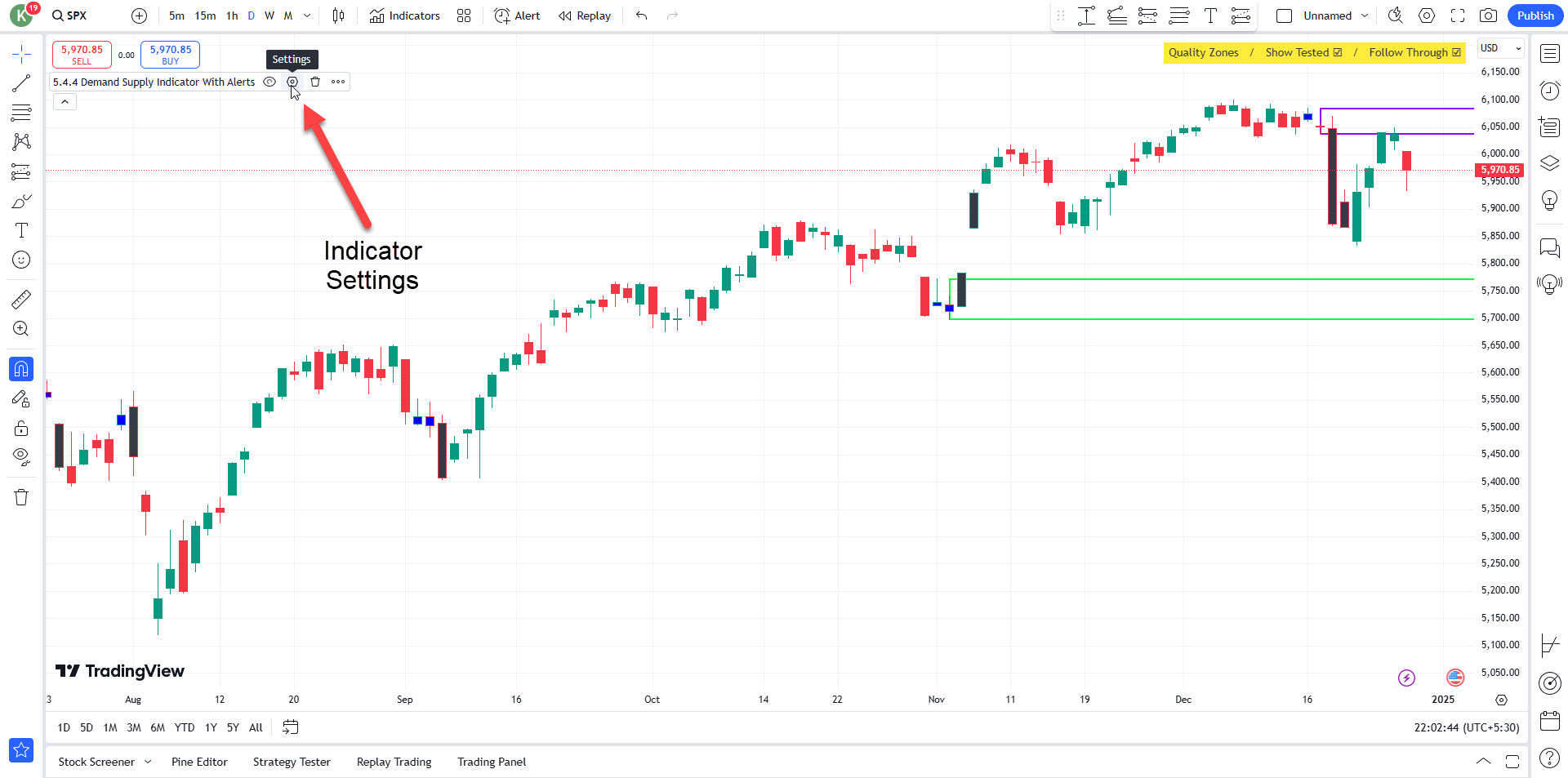
Adjust the Indicator Settings
- To customize the indicator settings, click the gear icon next to the indicator name in your chart’s indicator list.
- Modify the settings as needed (e.g., zone visibility, colors, or other parameters).
Legal Disclaimer
All products, indicators, tools, strategies, scanners, content, and services provided by SurjeetKakkar.com are strictly for educational and informational purposes only. They are intended solely as technical analysis and decision-support tools and do not constitute investment advice, trading advice, portfolio management services, or a recommendation to buy or sell any securities, stocks, indices, commodities, forex, crypto, or any other financial instruments.
SurjeetKakkar.com is NOT a SEBI Registered Investment Advisor (RIA) or SEBI Registered Research Analyst (RA). We do not provide any personalized trading advice, stock tips, buy/sell signals, target-stoploss recommendations, or guaranteed/assured returns in any form.
Trading and investing in financial markets involve significant risk, including the risk of partial or complete loss of capital. Past performance is not indicative of future results. No strategy, indicator, or system can guarantee profits.
All users are solely responsible for their own trading and investment decisions. You are strongly advised to consult with a qualified and SEBI-registered financial advisor before making any financial decisions.
By using any product or service from SurjeetKakkar.com, you acknowledge and agree that:
You fully understand the risks involved in trading
You are using all tools and information at your own discretion and risk
SurjeetKakkar.com and its owner shall not be held liable for any losses, damages, legal issues, or financial consequences arising from the use of any product, tool, content, or service
Trading involves substantial risk, including the potential loss of capital. Past performance is not indicative of future results. Users are solely responsible for their trading decisions and are strongly encouraged to consult with a licensed financial advisor before making any trading or investment decisions.
By using the Indicator, you acknowledge this disclaimer and agree to use the tool responsibly and at your own discretion.