
Get 7-Day Free Access to Demand Supply Zone Indicator Now
Demand Supply Alerts & Screener Combo: Your Ultimate Trading Edge
Boost your trading game with our Demand Supply Alerts & Screener Combo! Perfect for all traders, this powerful tool helps you pinpoint high-probability zones, find profitable setups, and stay ahead of the curve. Upgrade your strategy now!
Get Started Today and Transform Your Trading Experience
Unlock the power of precision trading with our exclusive Demand Supply Alerts & Screener Combo. Designed for traders of all levels, this all-in-one solution helps you identify high-probability zones, screen profitable setups, and stay ahead in the market. Transform your trading strategy today!
The Demand Supply Alerts & Screener Combo is your ultimate trading companion, combining pinpoint accuracy and time-saving efficiency. This powerful duo empowers you to make smarter decisions with real-time alerts for high-probability demand and supply zones, while the screener identifies lucrative opportunities across multiple markets. With its proven methodology, user-friendly interface, and multi-market support, this combo delivers unmatched versatility. Plus, you’ll enjoy incredible value, gaining access to both tools at a more affordable price than subscribing individually. As a bonus, your subscription includes complimentary access to the Demand and Supply Zone Indicator with Alerts during your subscription period, enhancing your trading toolkit for maximum impact.
Receive instant notifications for high-probability demand and supply zones, keeping you informed about areas where price action demonstrates the strongest potential.
Quickly identify opportunities across multiple markets and timeframes where price is trading close to or within demand and supply zones, using tailored filters for zone strength and other key factors.
An easy-to-use interface with an intuitive design ensures seamless navigation, enabling you to act swiftly on alerts and screener results.
Get comprehensive coverage for all markets and asset classes available on TradingView, providing you with a wide range of trading opportunities.
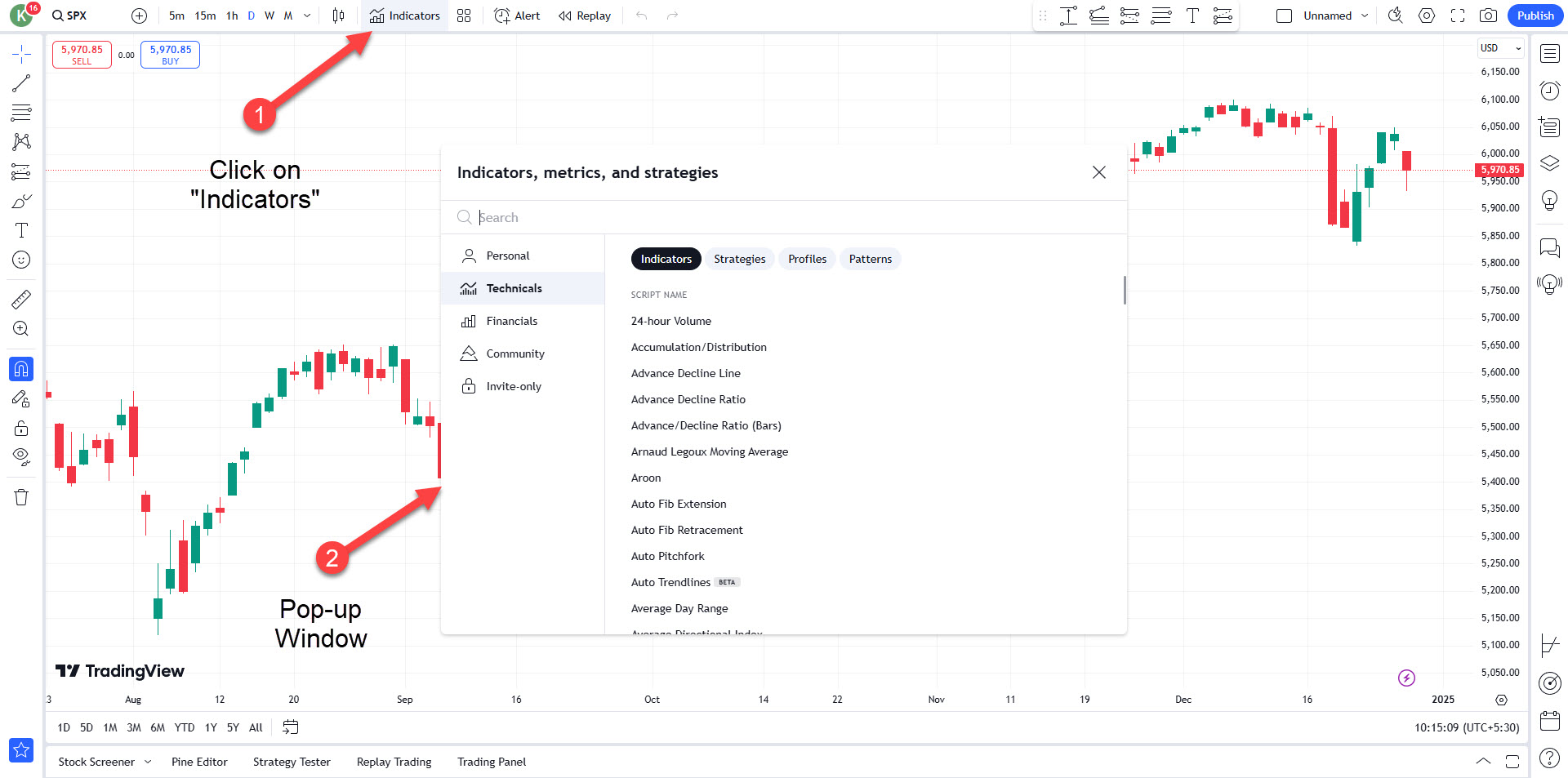
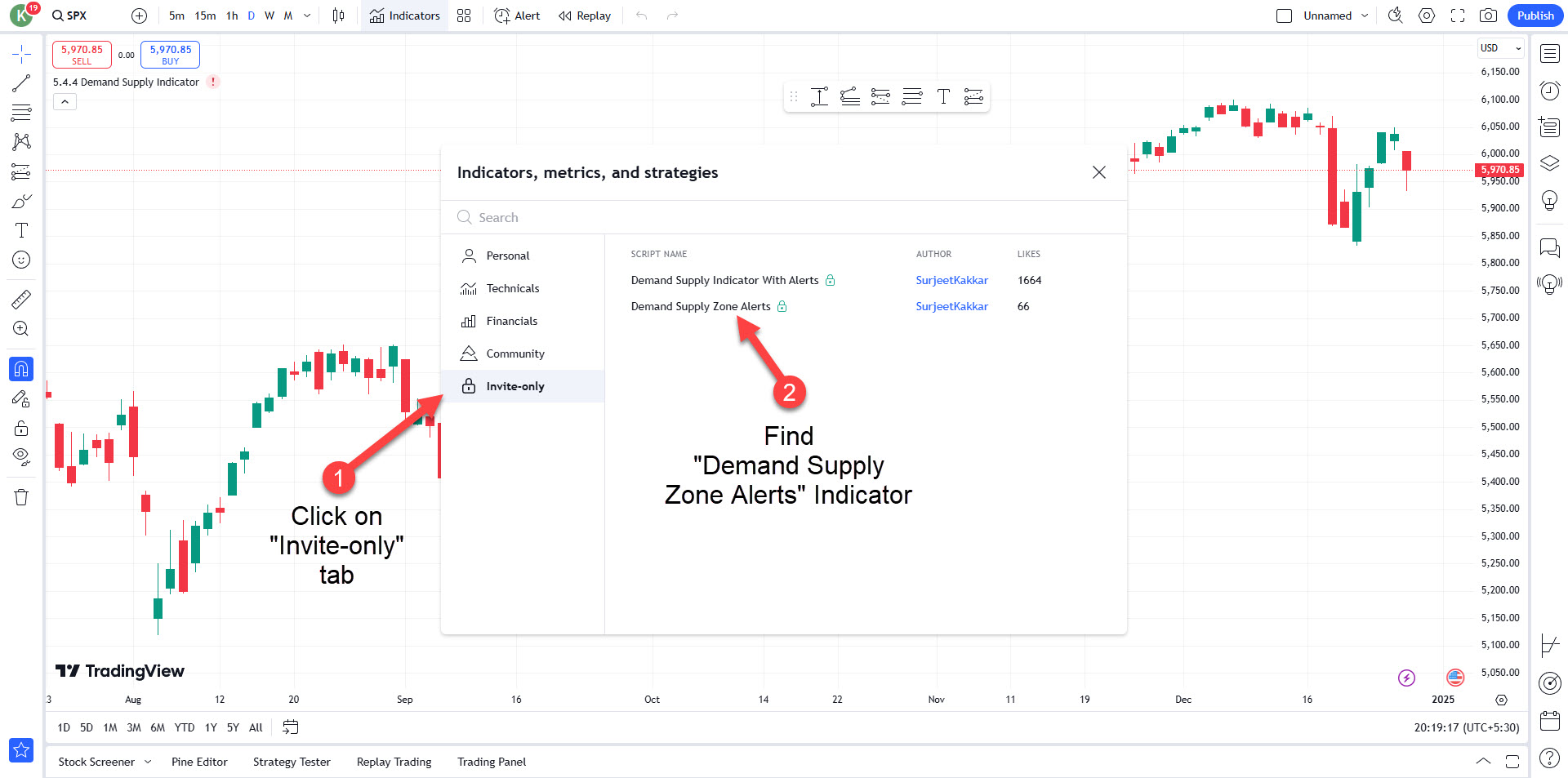
Access the Demand and Supply Zone Indicator with Alerts for free throughout your subscription period, giving you an additional edge in making informed trading decisions.
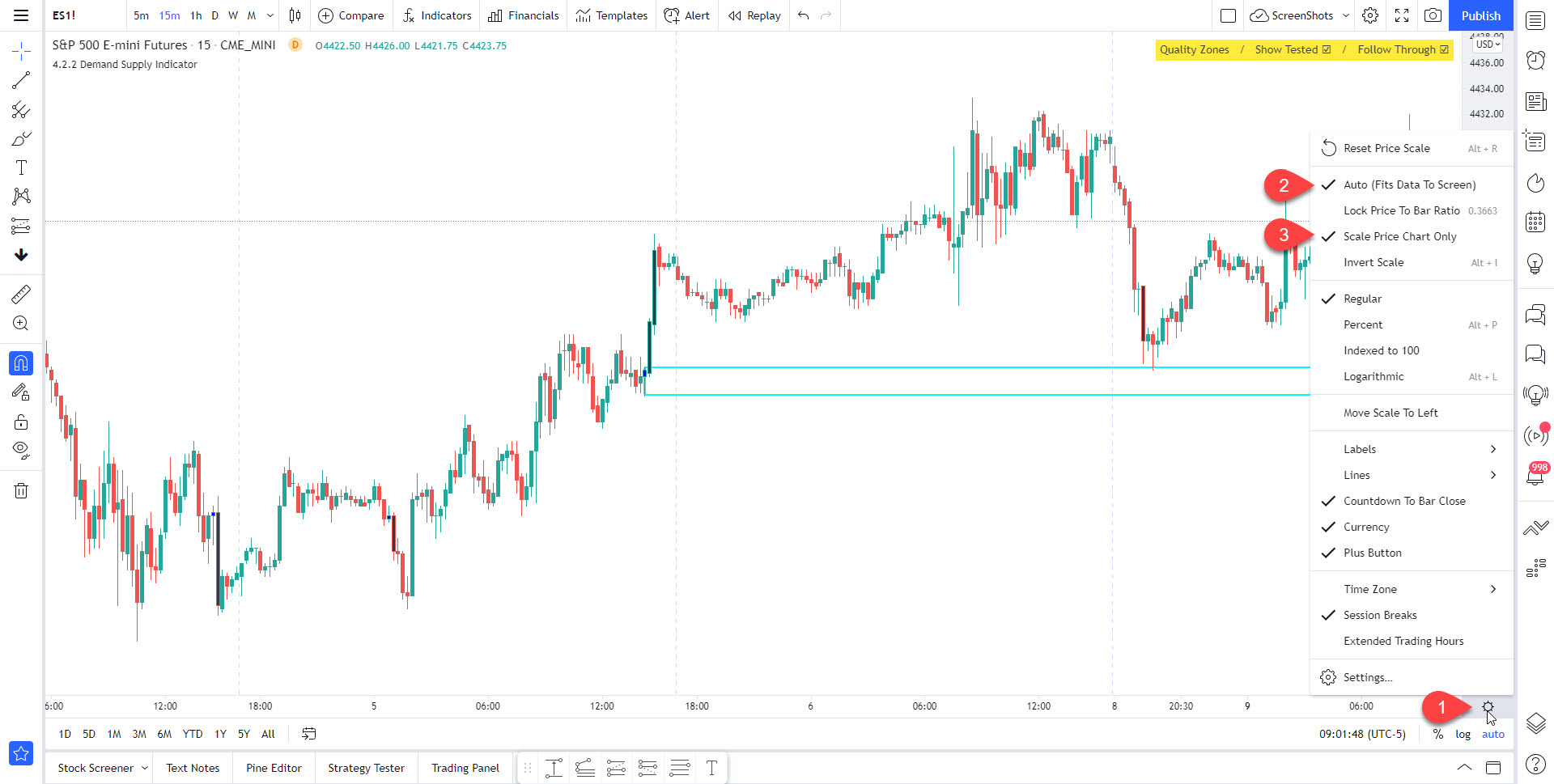
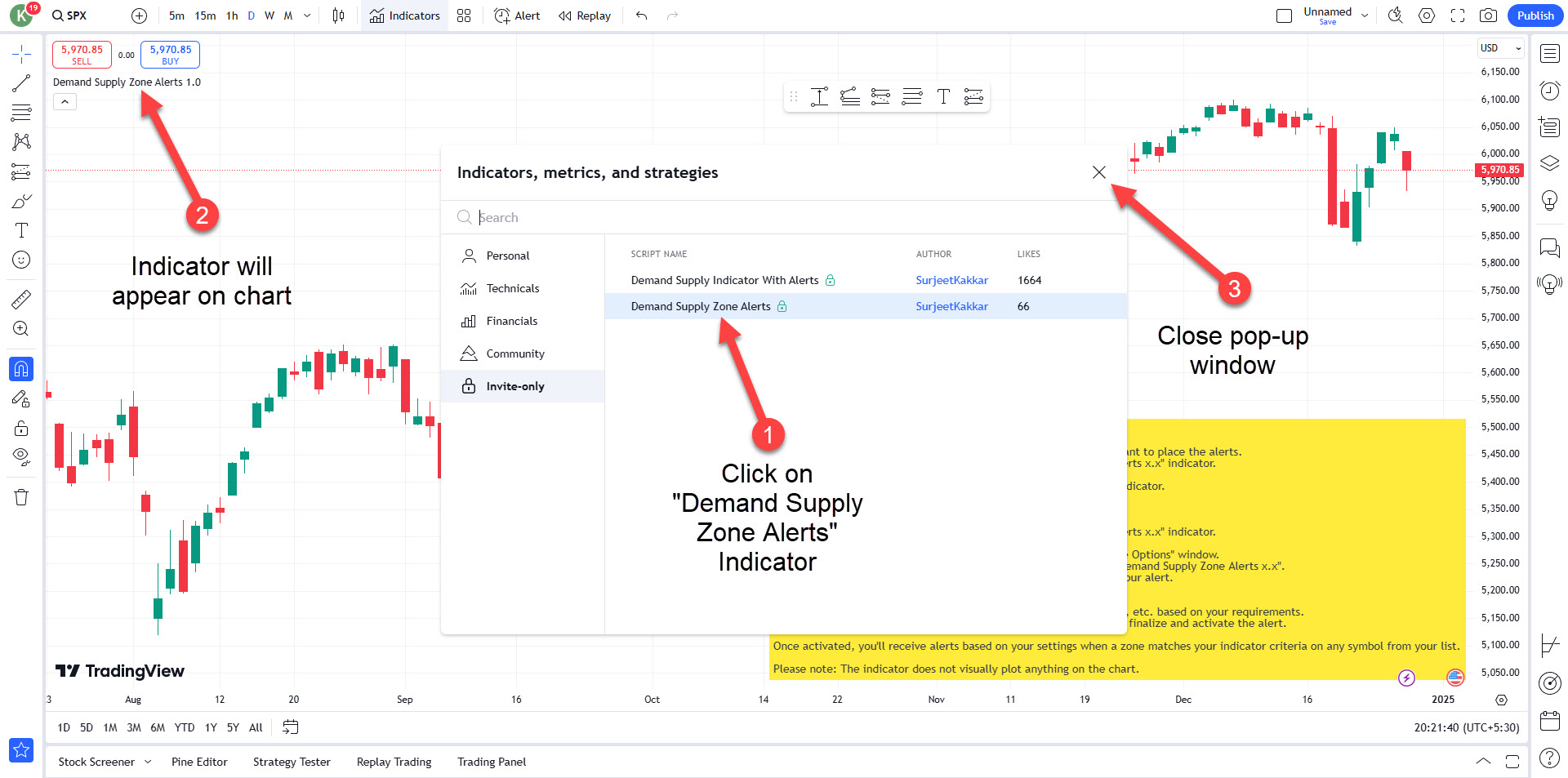
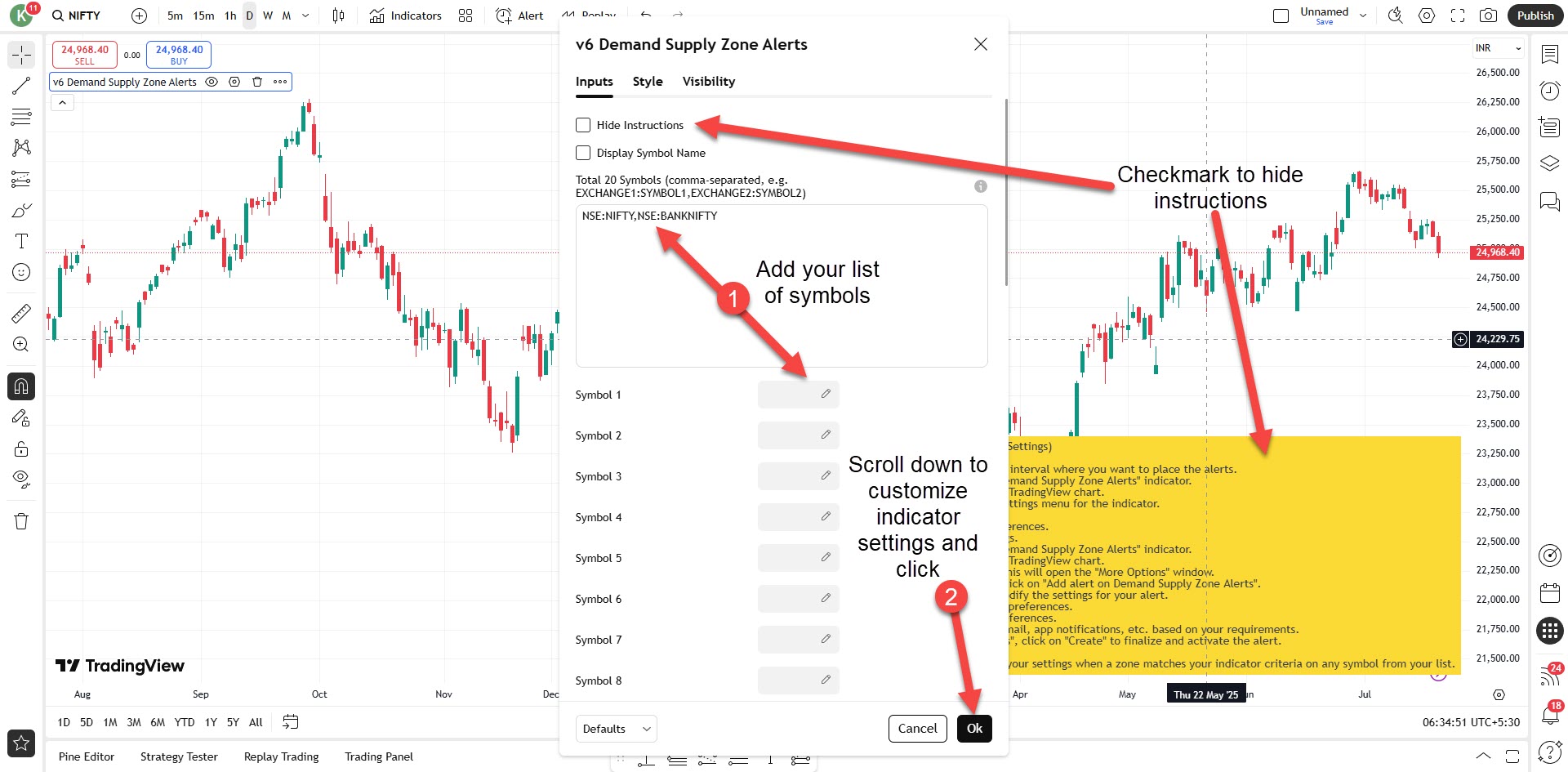
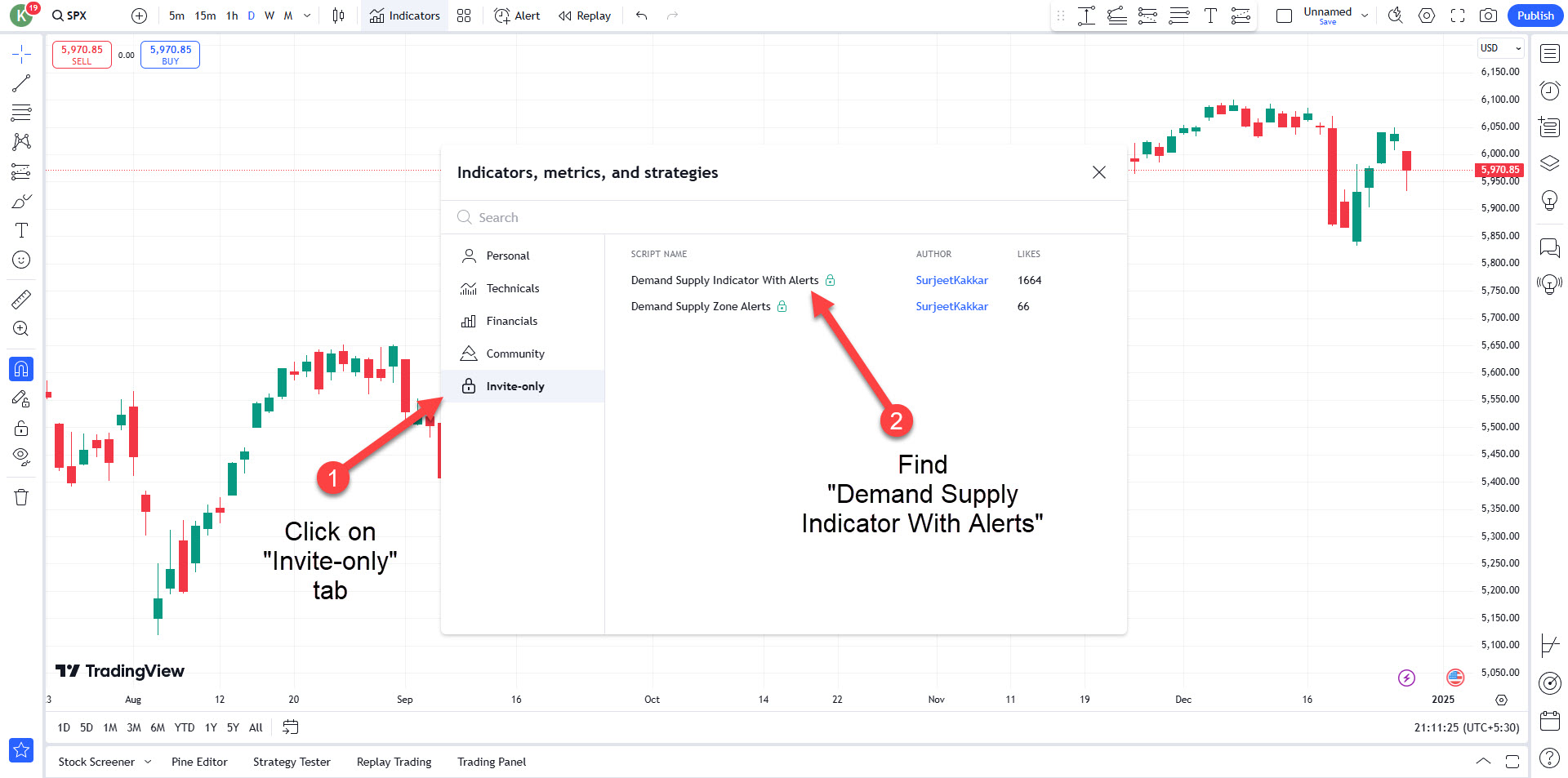
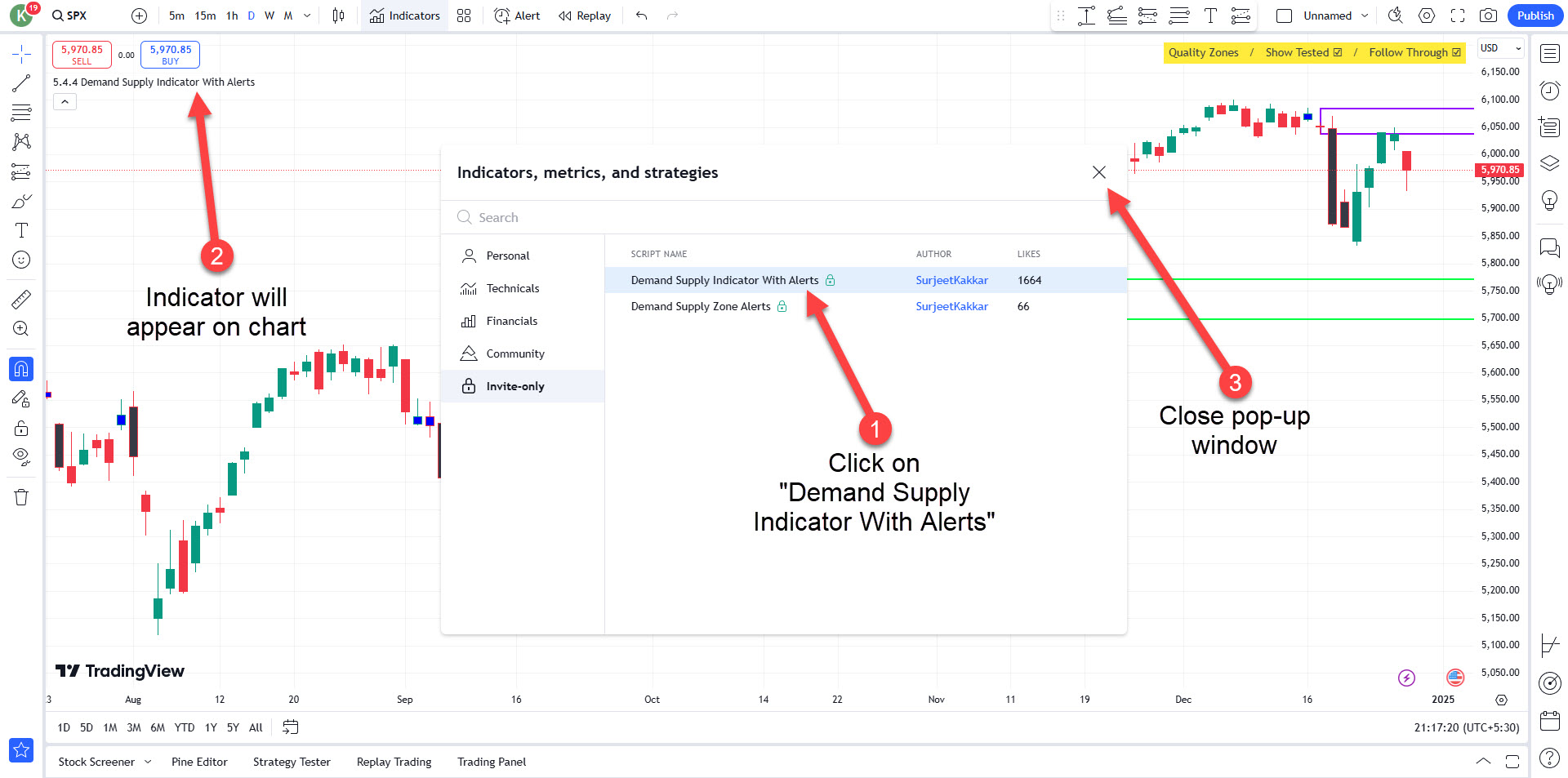
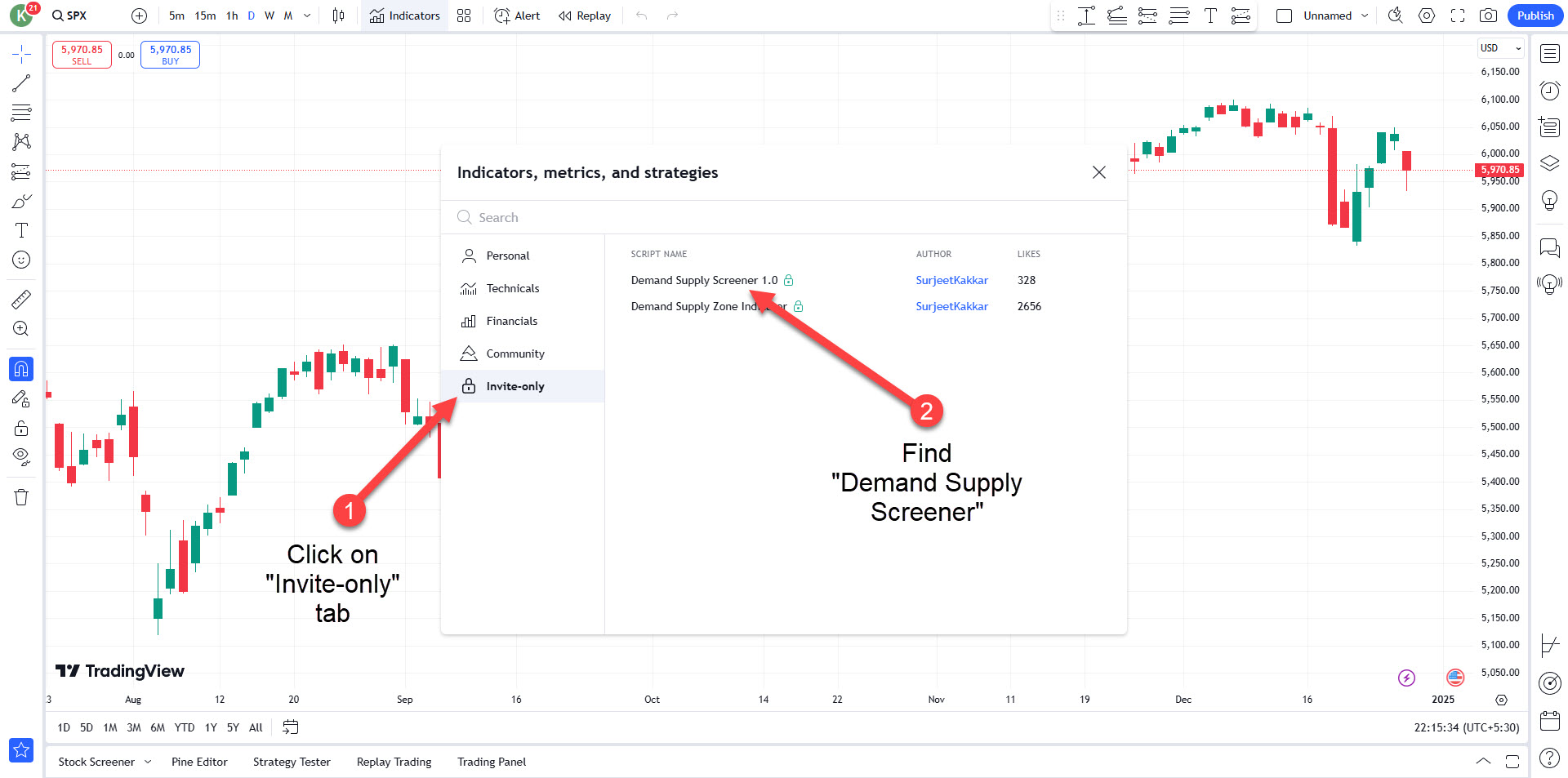
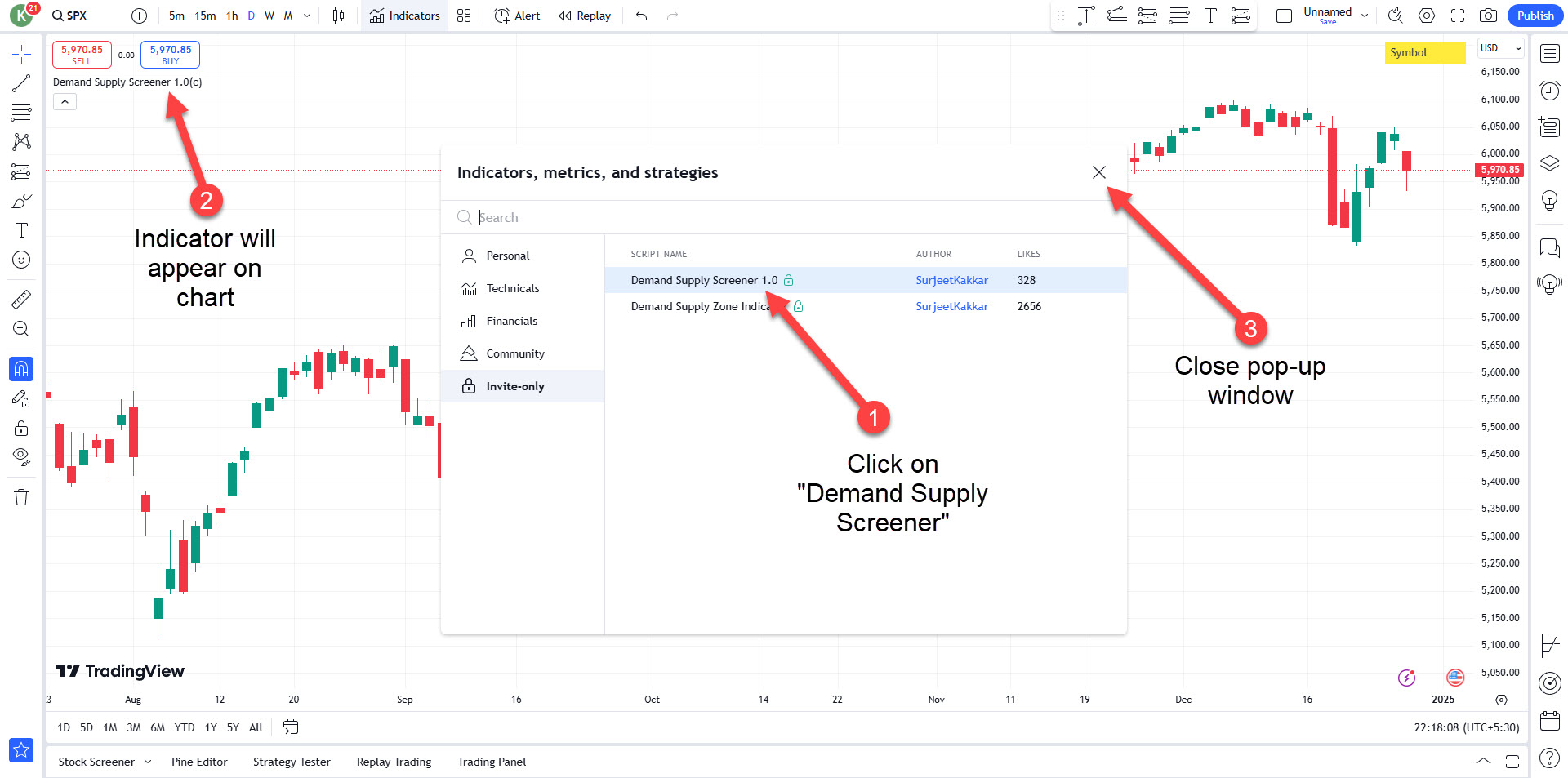
To ensure optimal chart performance, please adjust your settings as shown below:
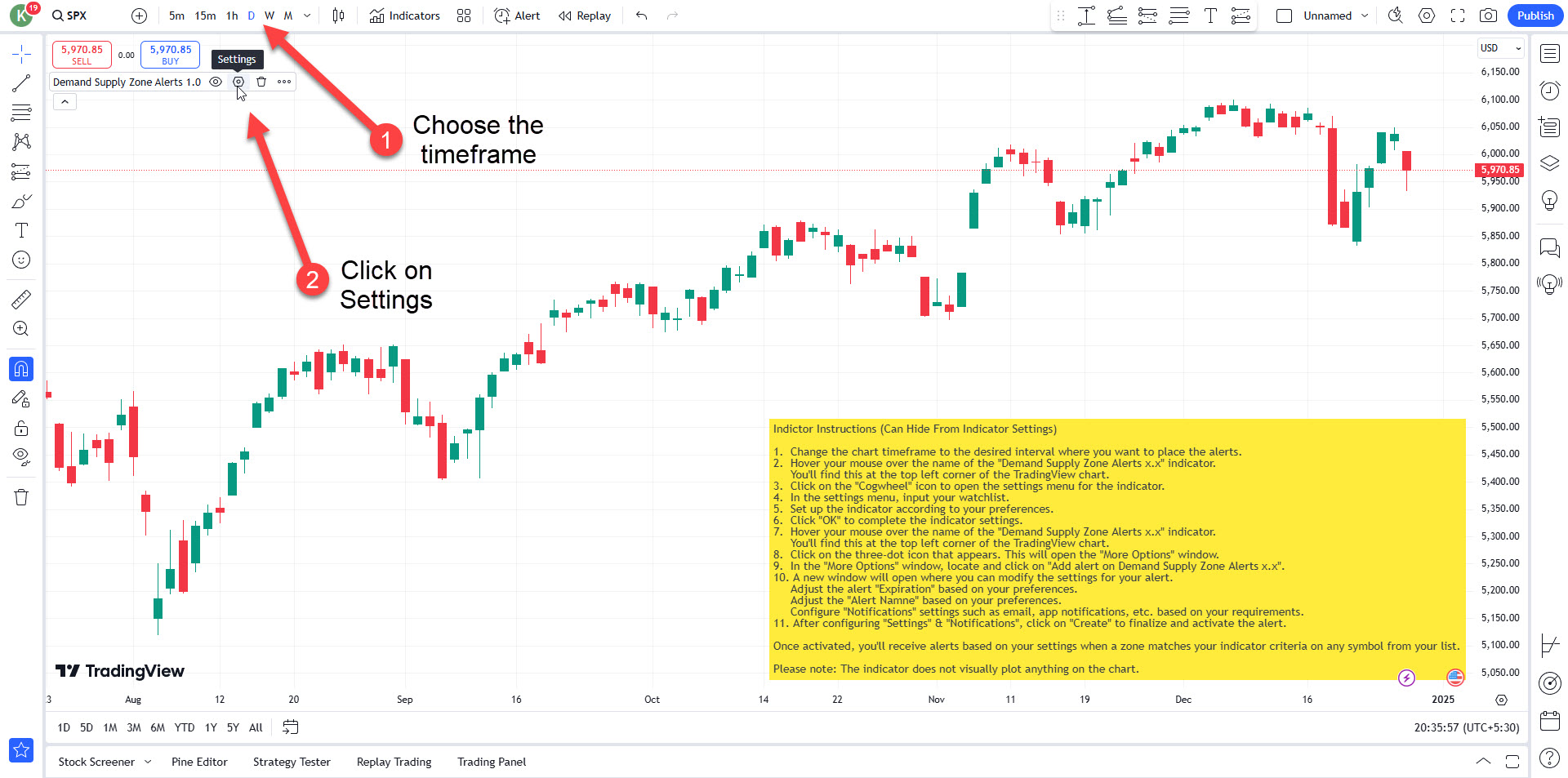
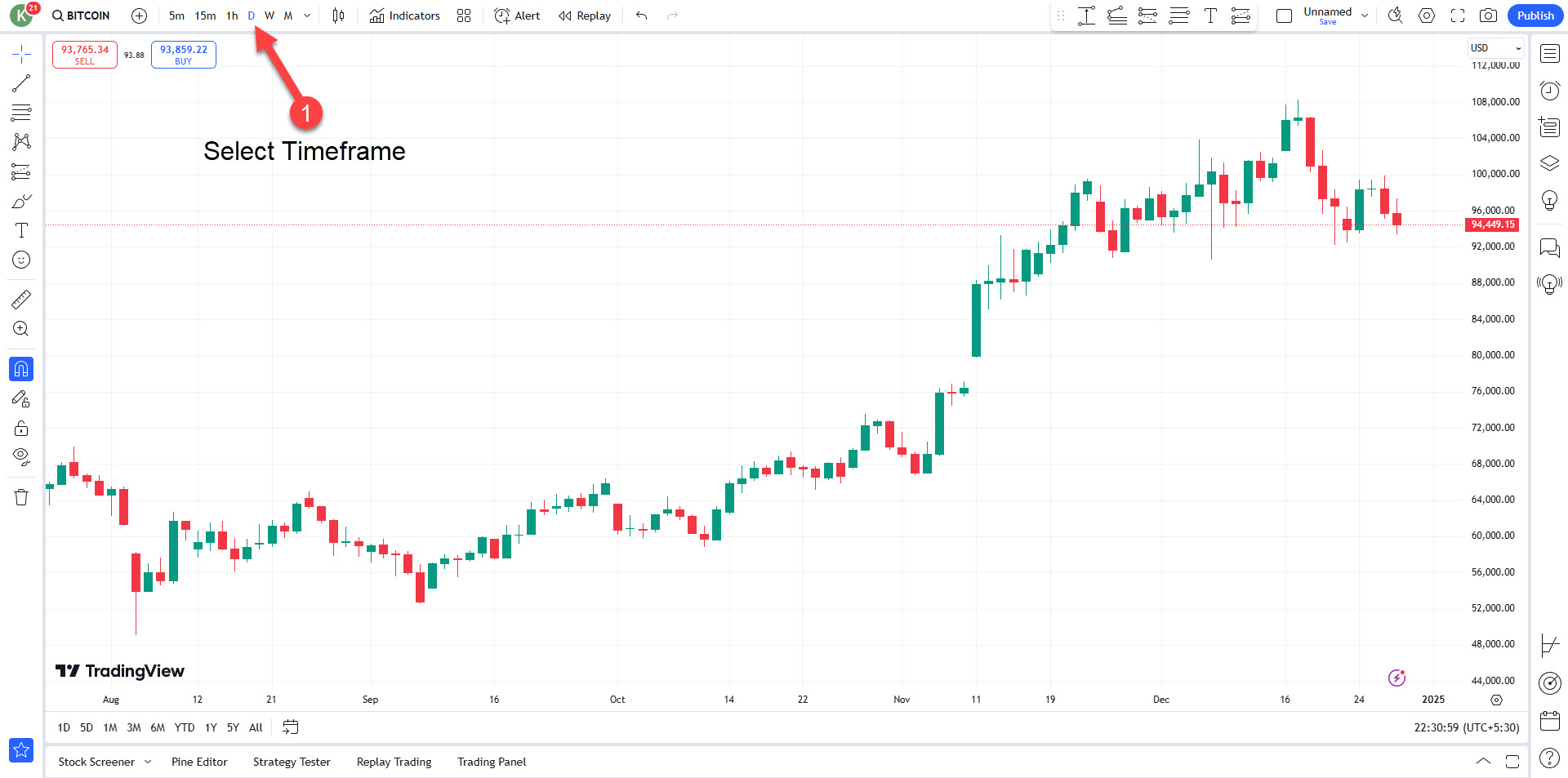
Choose the timeframe for which you want to place alerts.
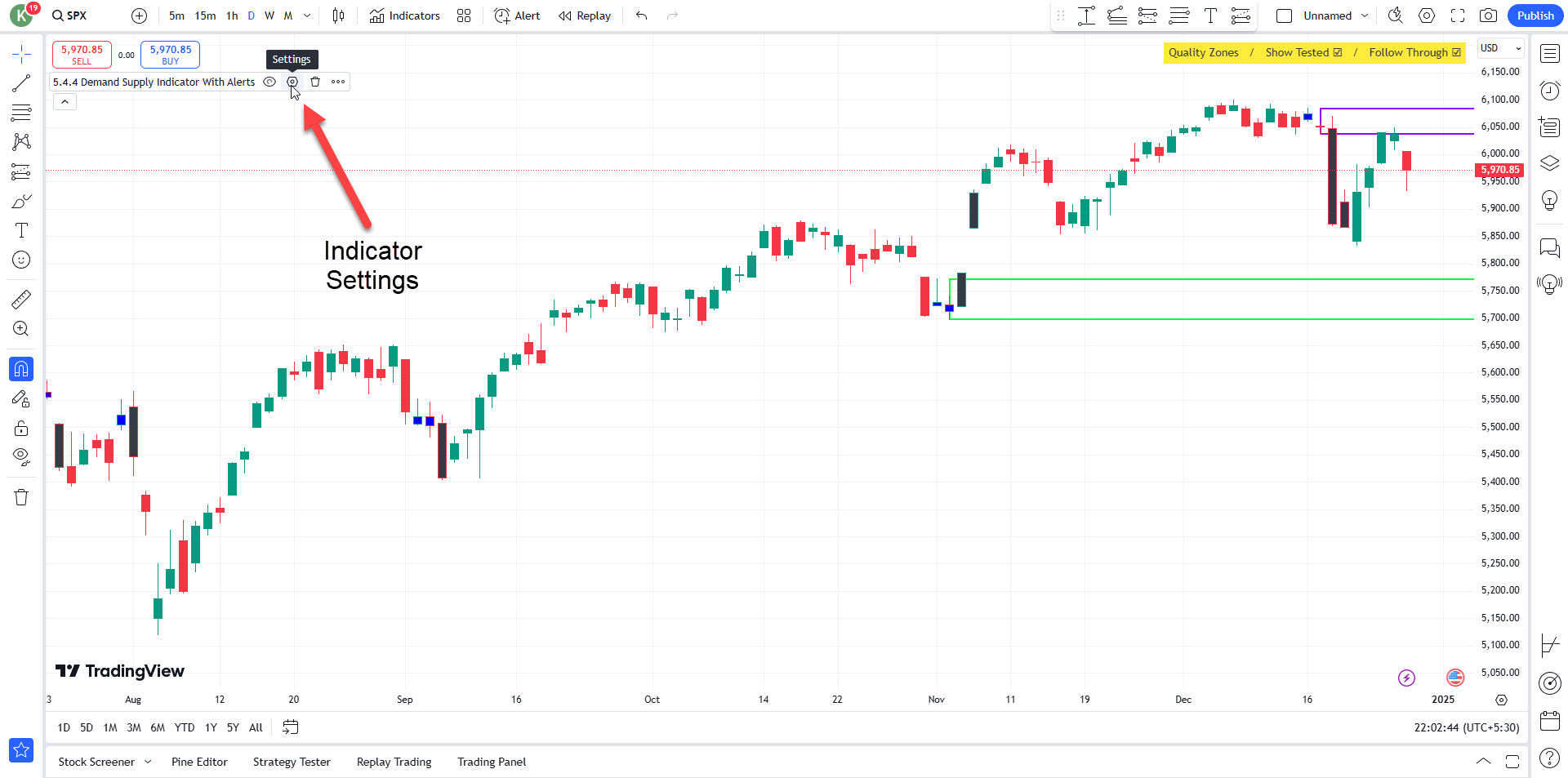
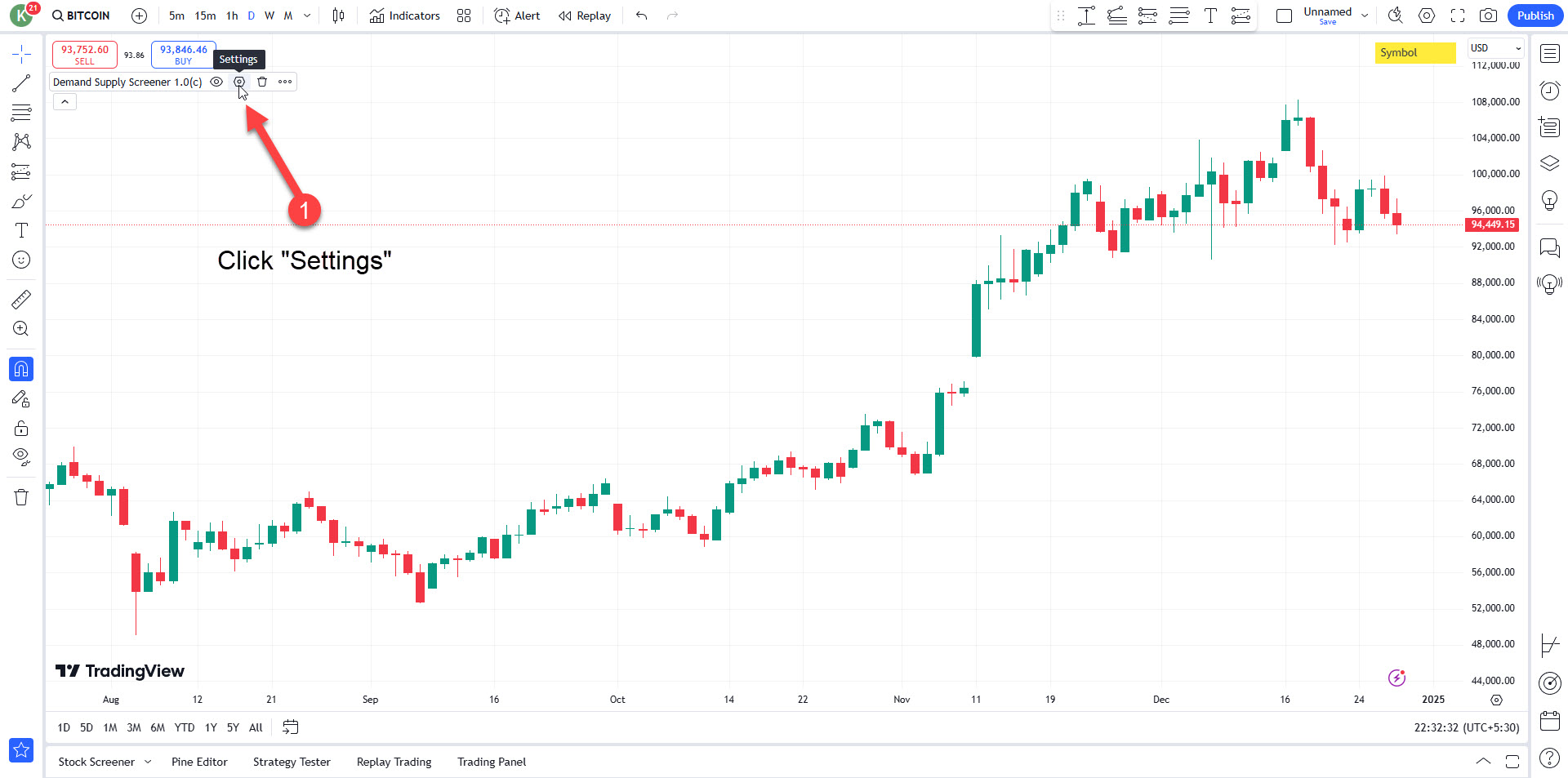
After selecting the timeframe, click on the Settings option.
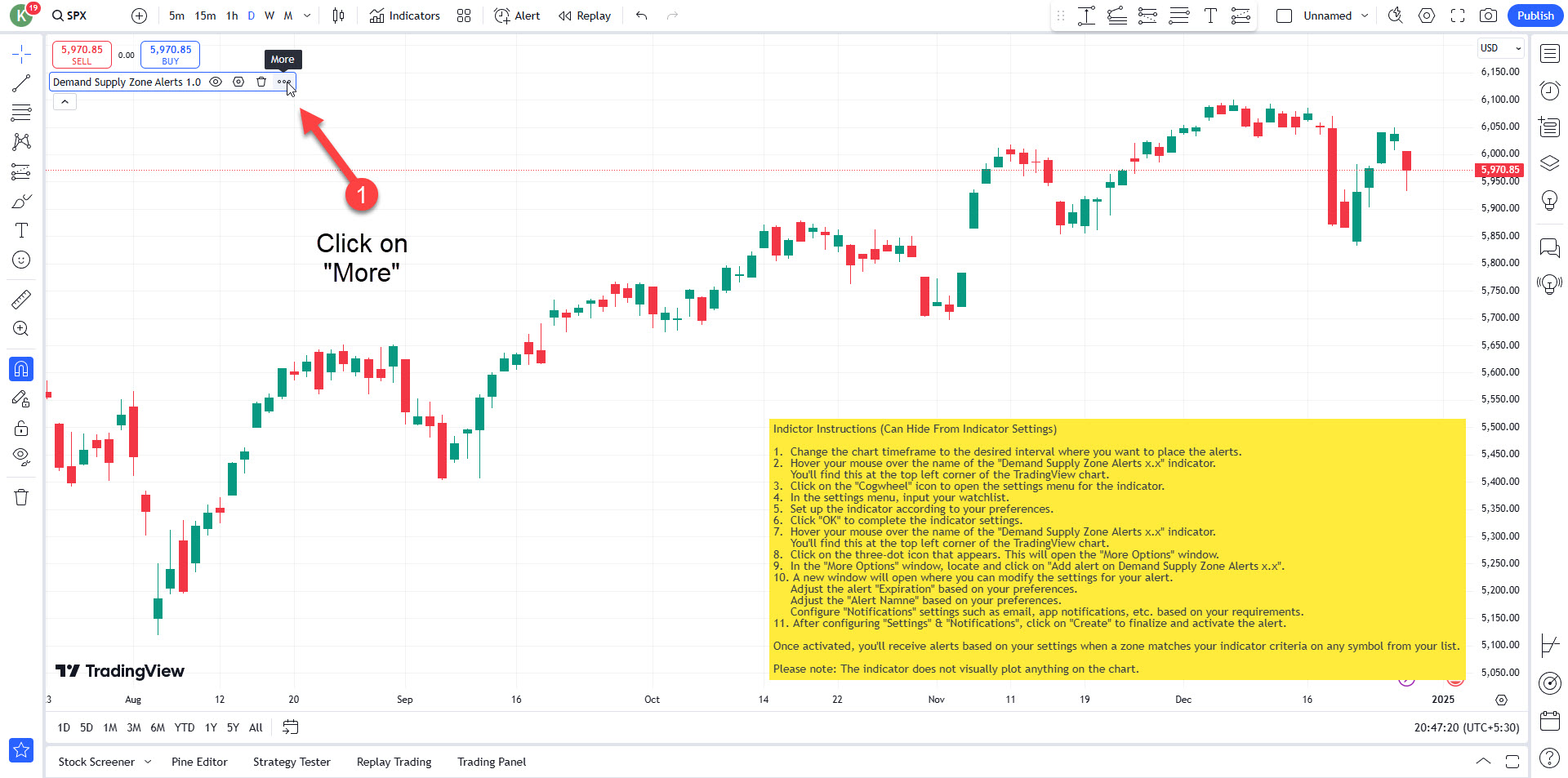
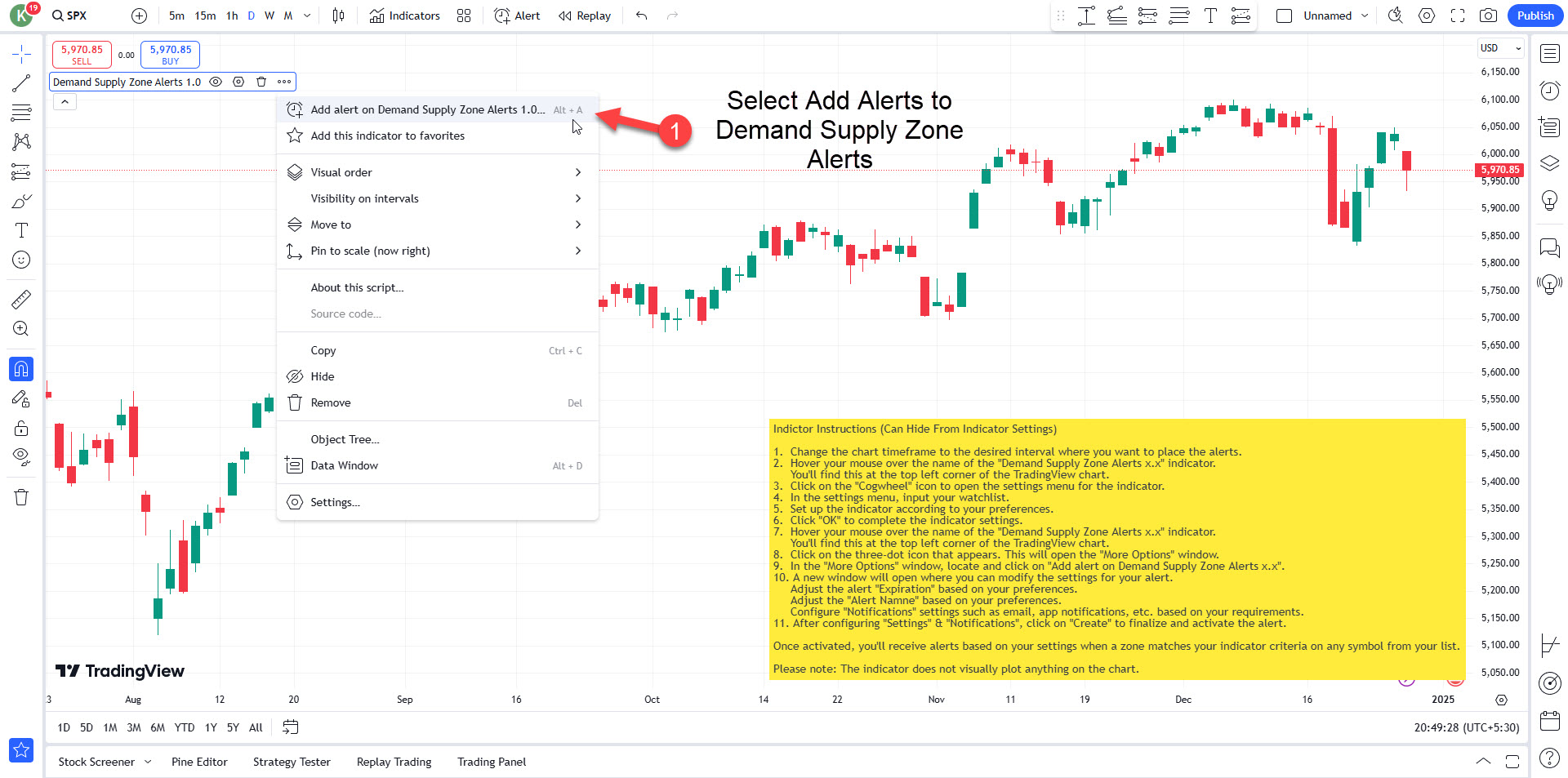
Click on More.
Select Add Alerts to Demand Supply Zone Alerts.
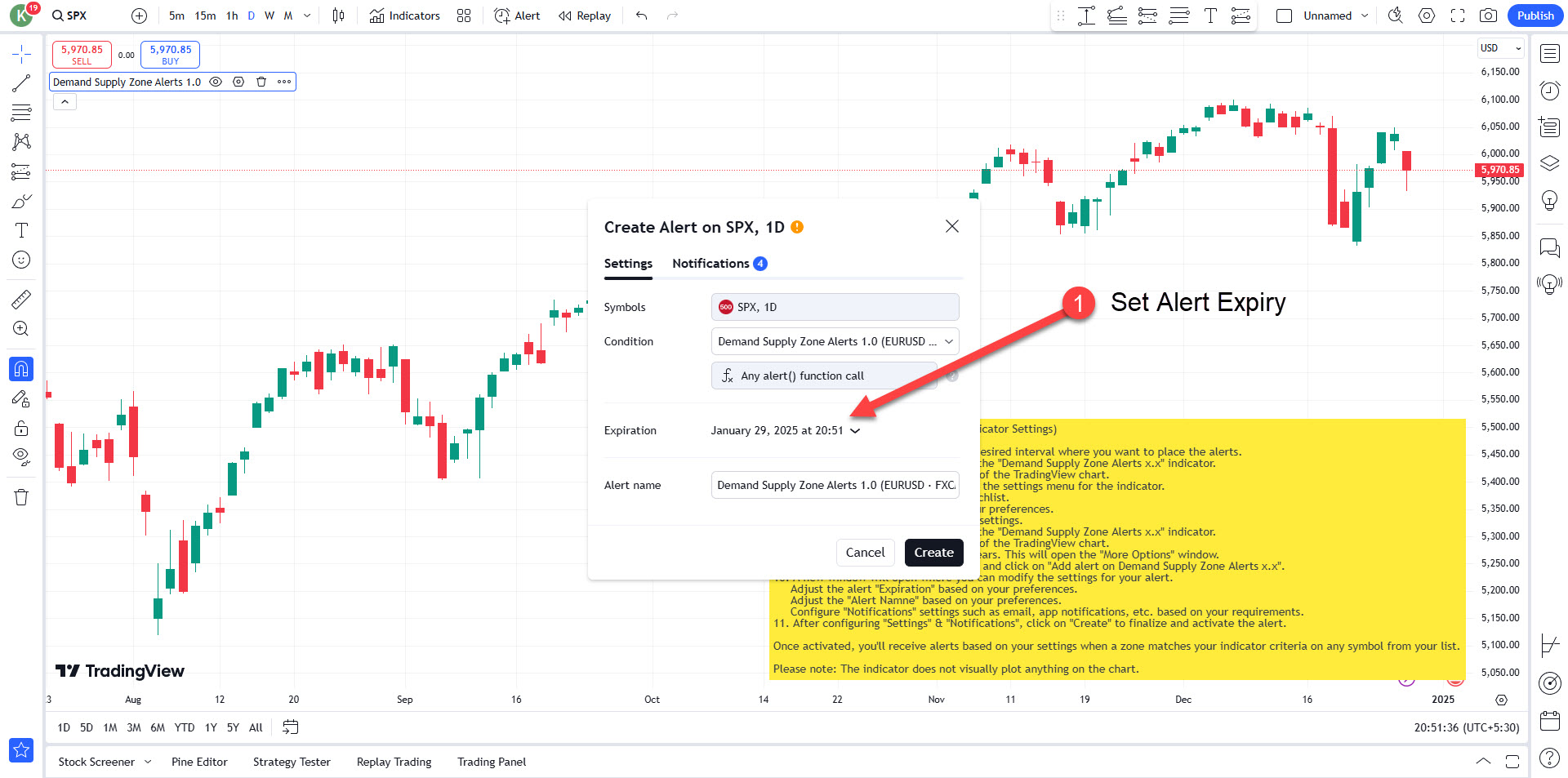
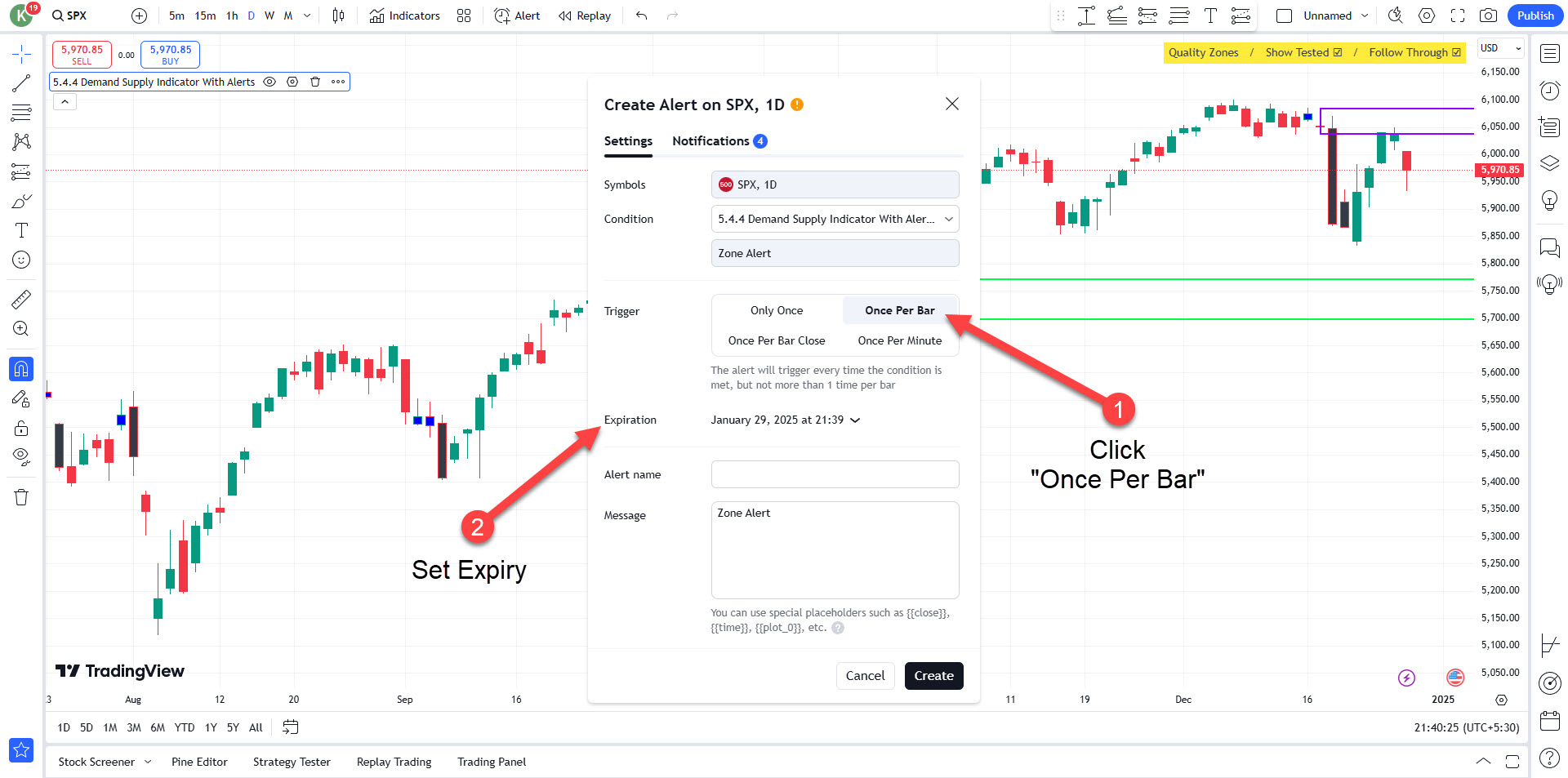
Choose the duration for how long the alert should remain active.
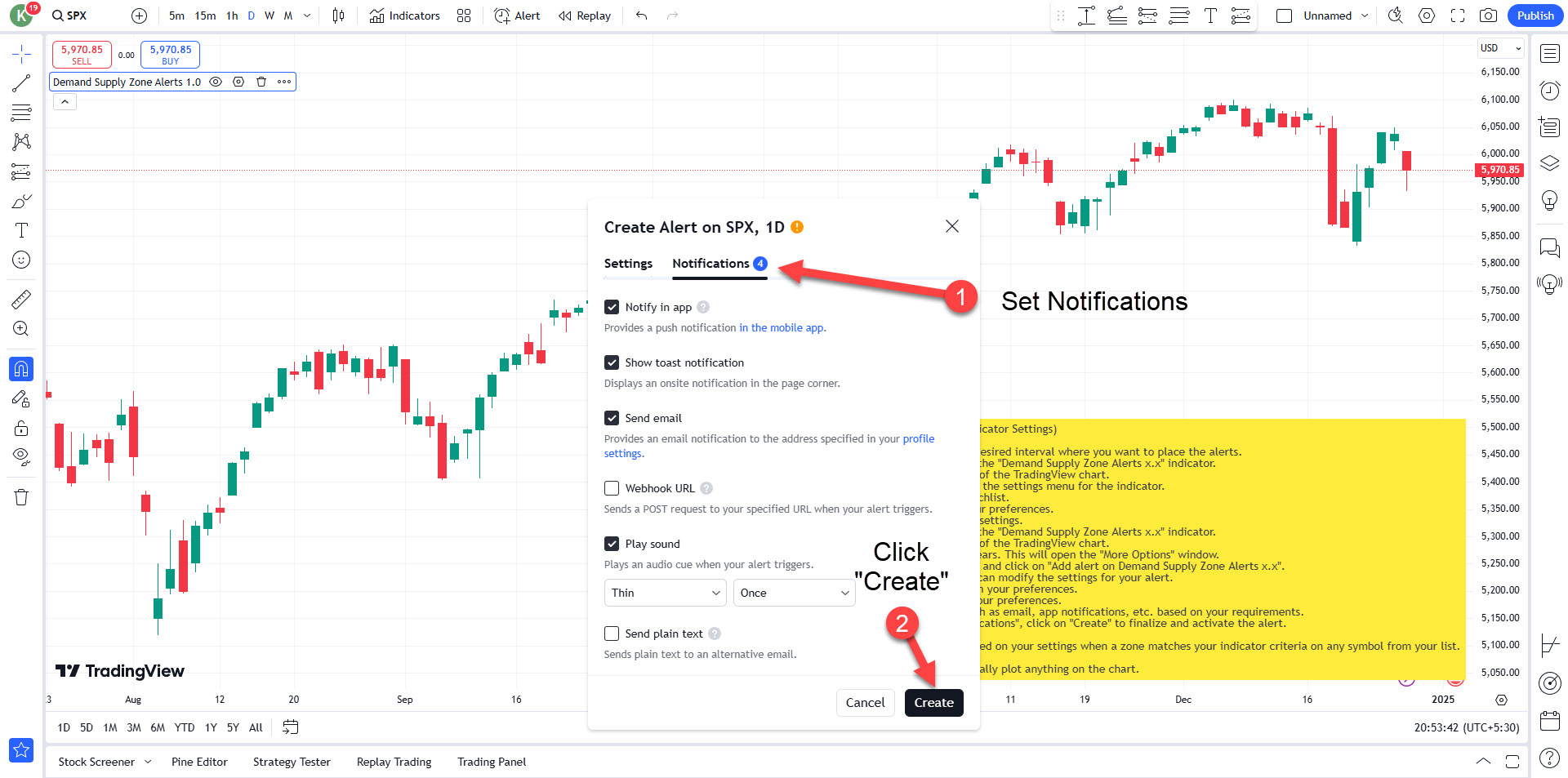
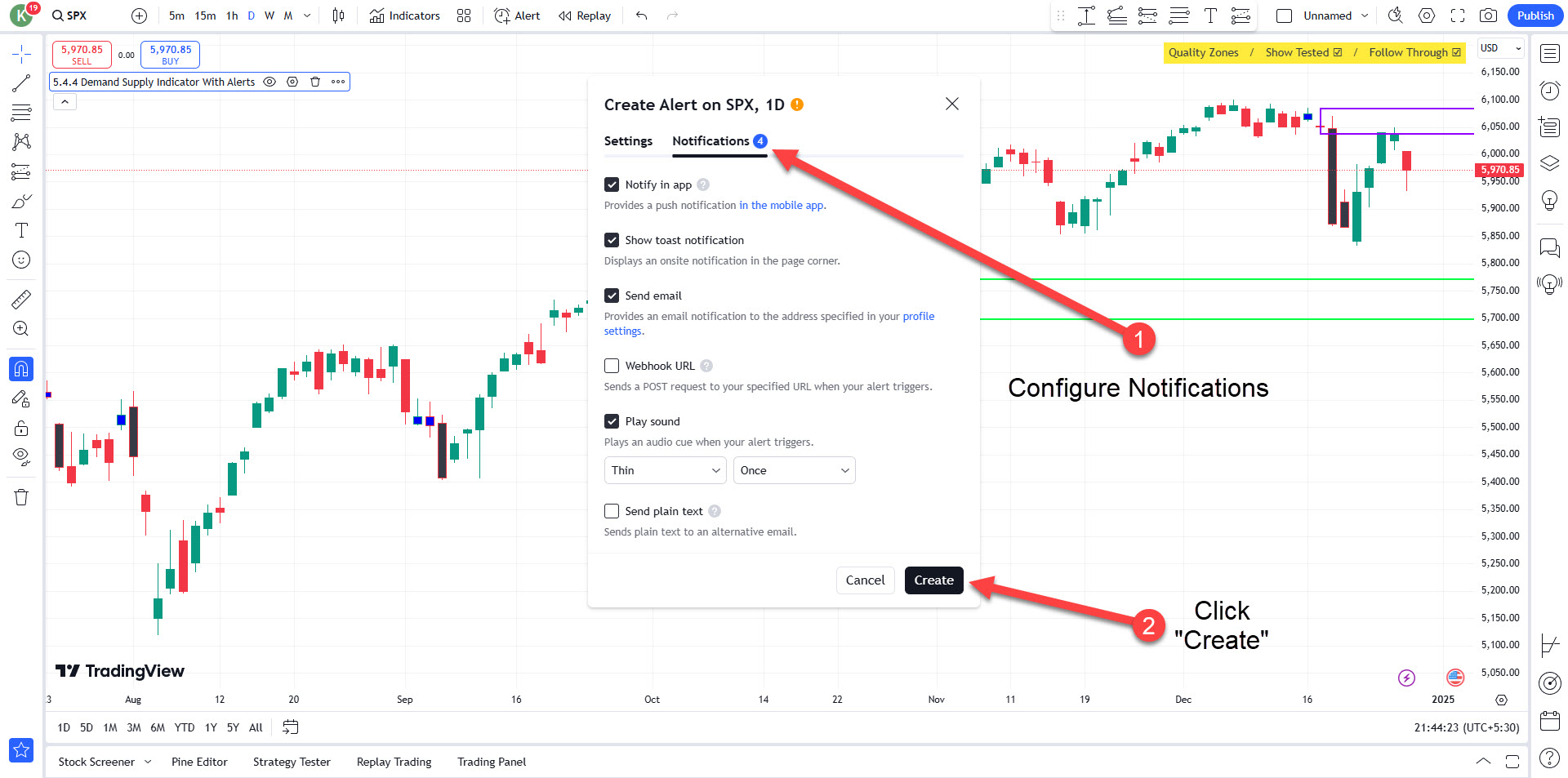
Set your alert notification preferences.
Click Create to finalize the alert.
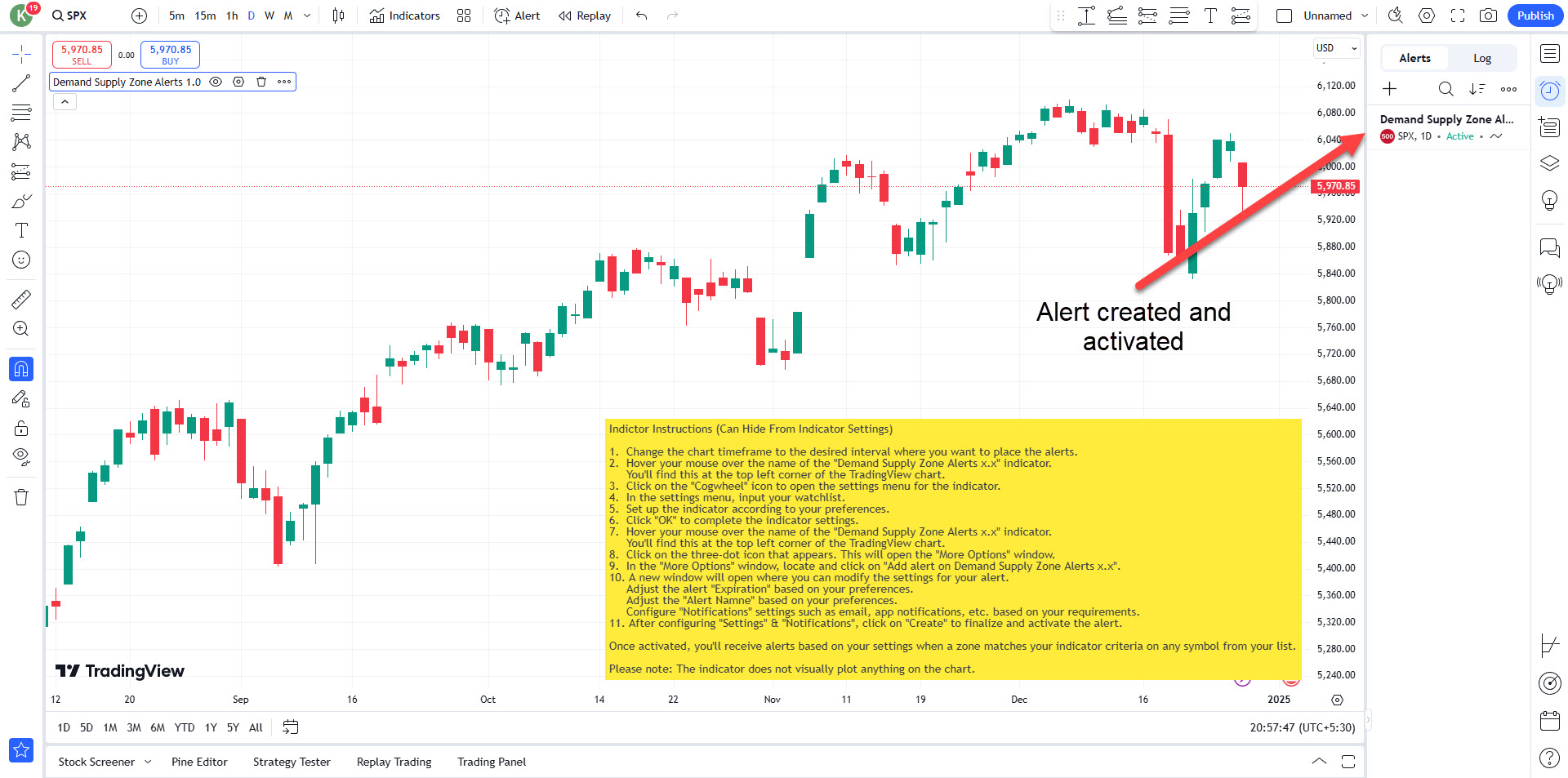
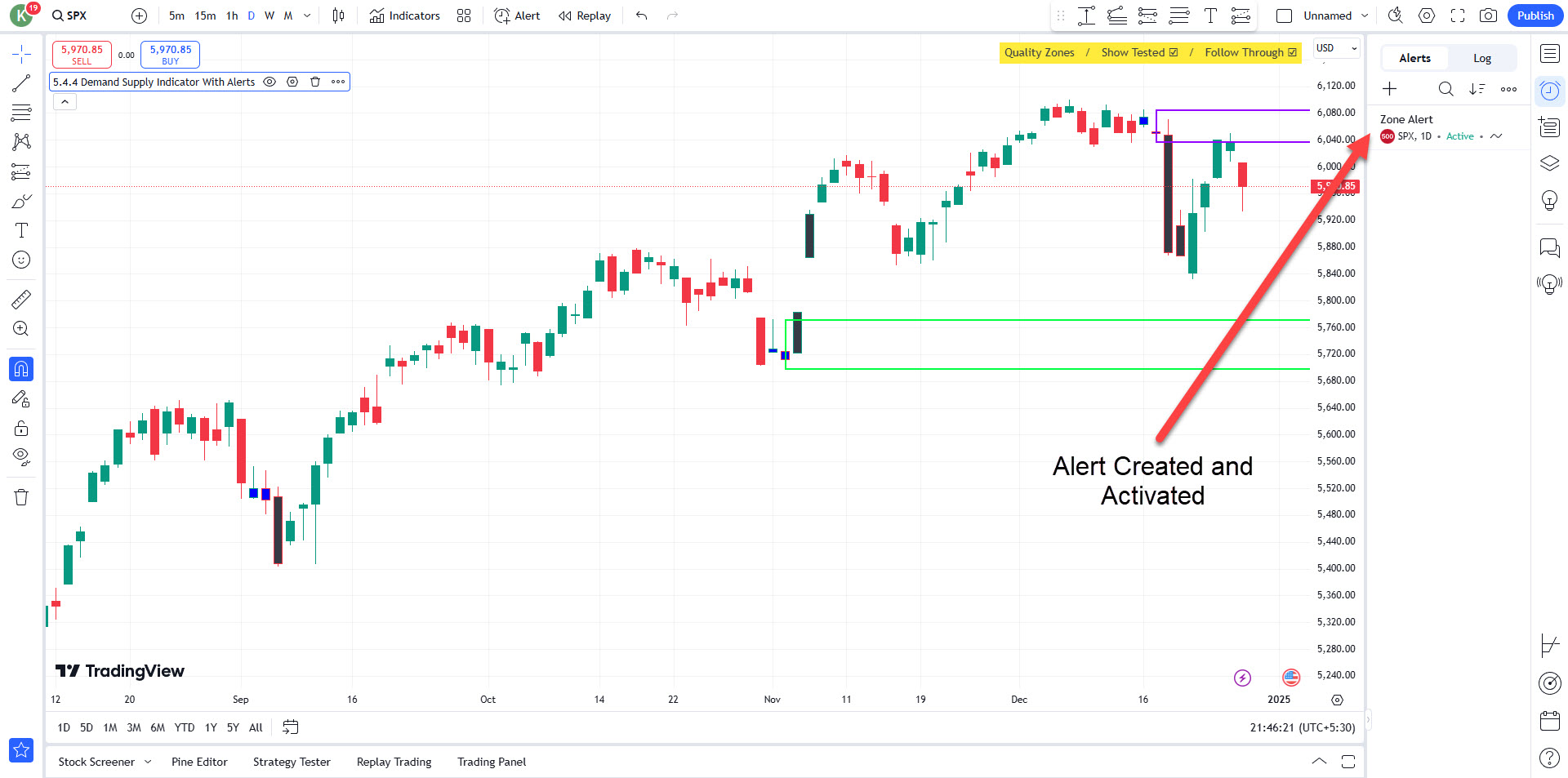
Once the alert is created and activated:
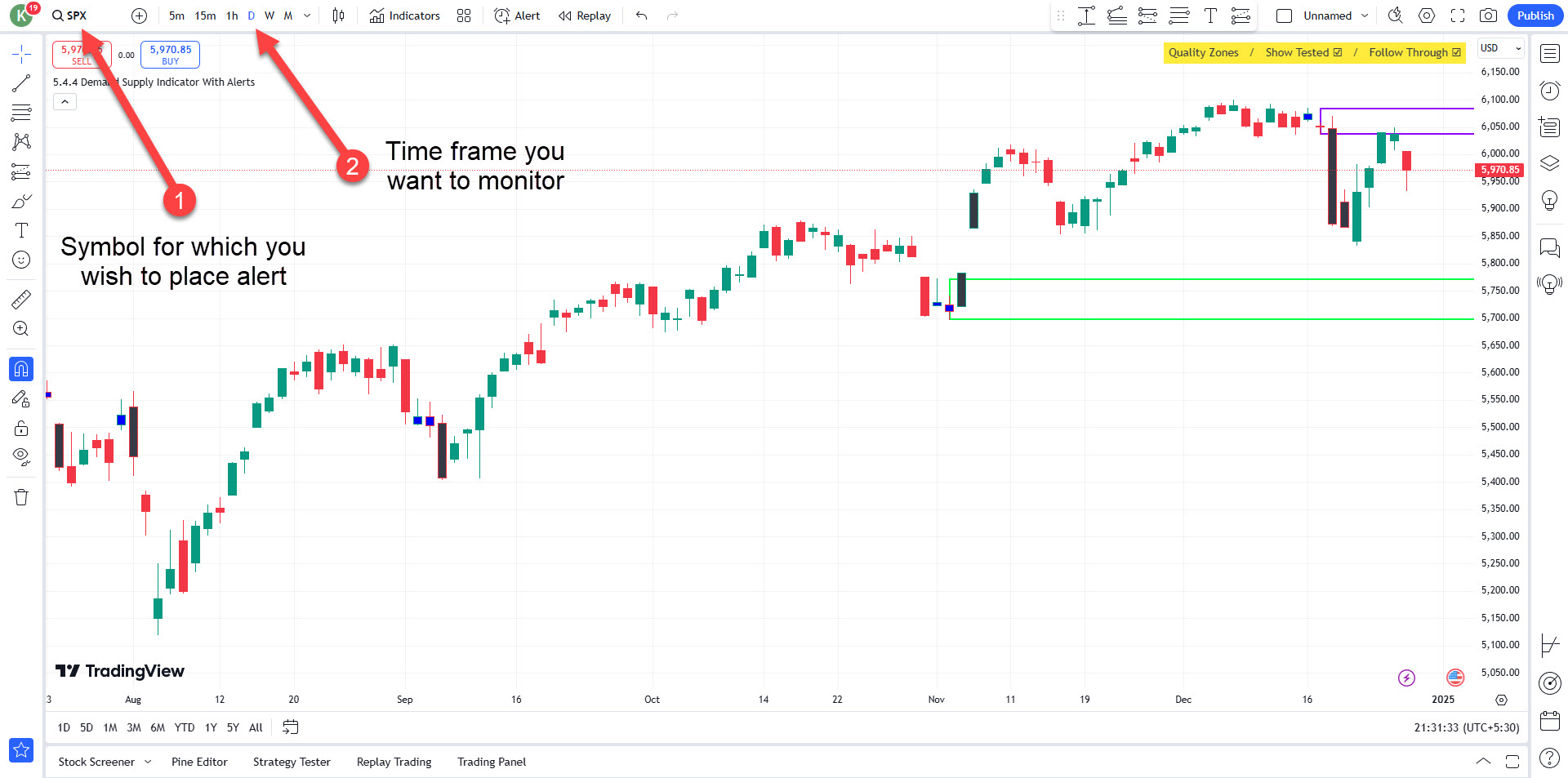
Ensure you are on the chart of the symbol you wish to place the alert for.
Set the time frame you want to monitor for the alert.
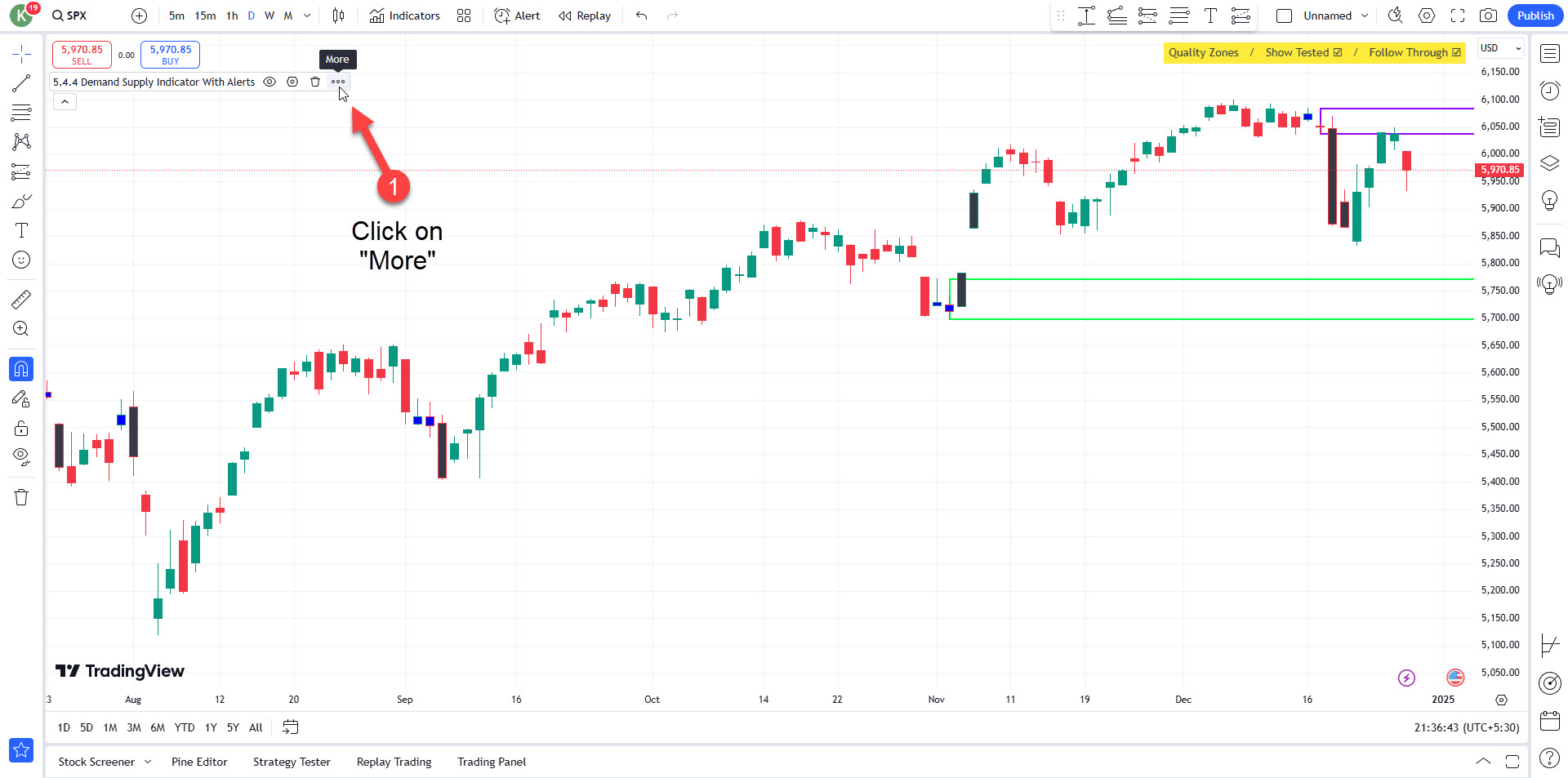
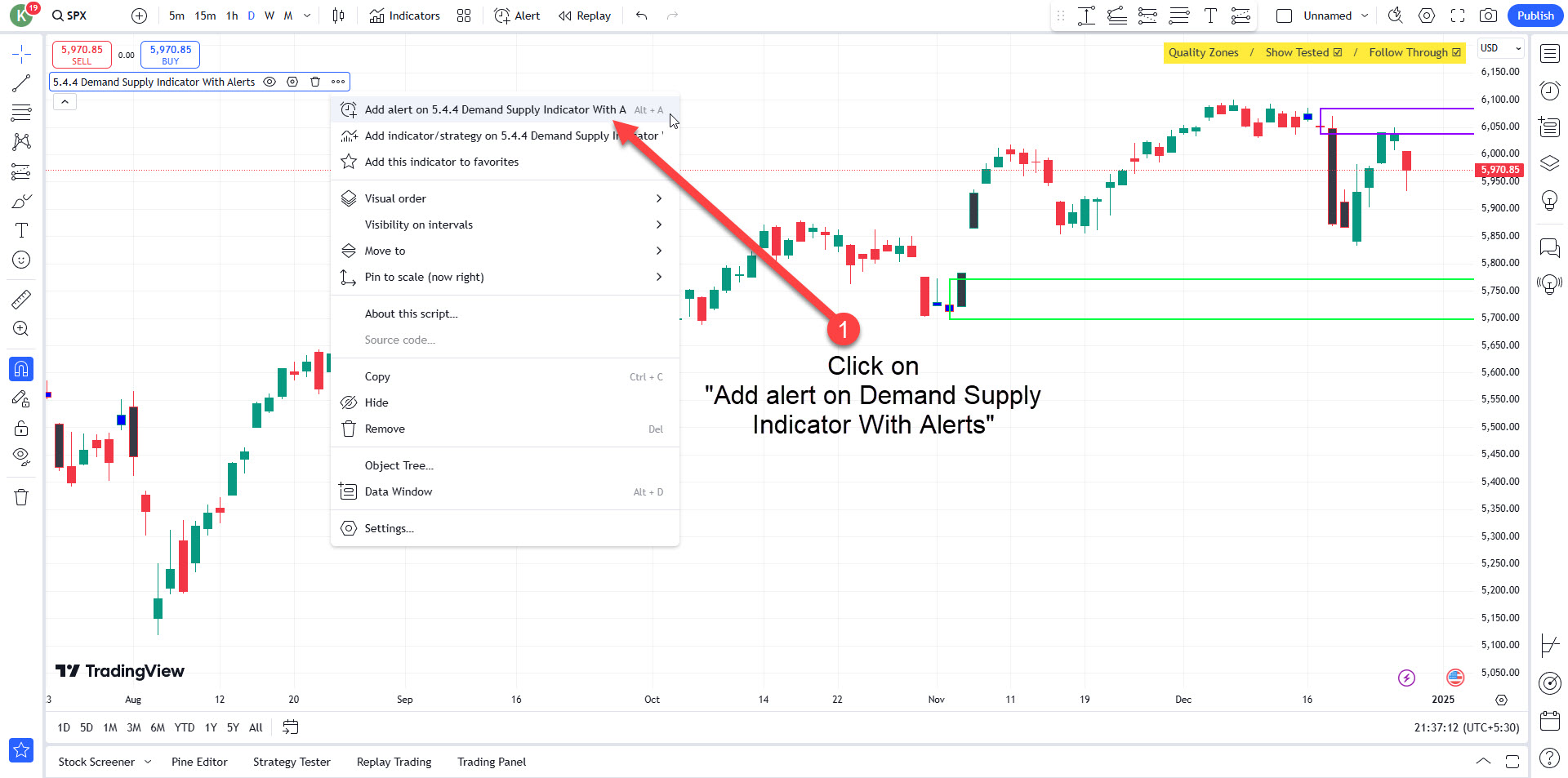
Click on the “More”.
Click on “Add Alert on Demand Supply Indicator With Alerts”.
Choose “Once Per Bar” as the trigger condition.
Configure how you want to be notified.
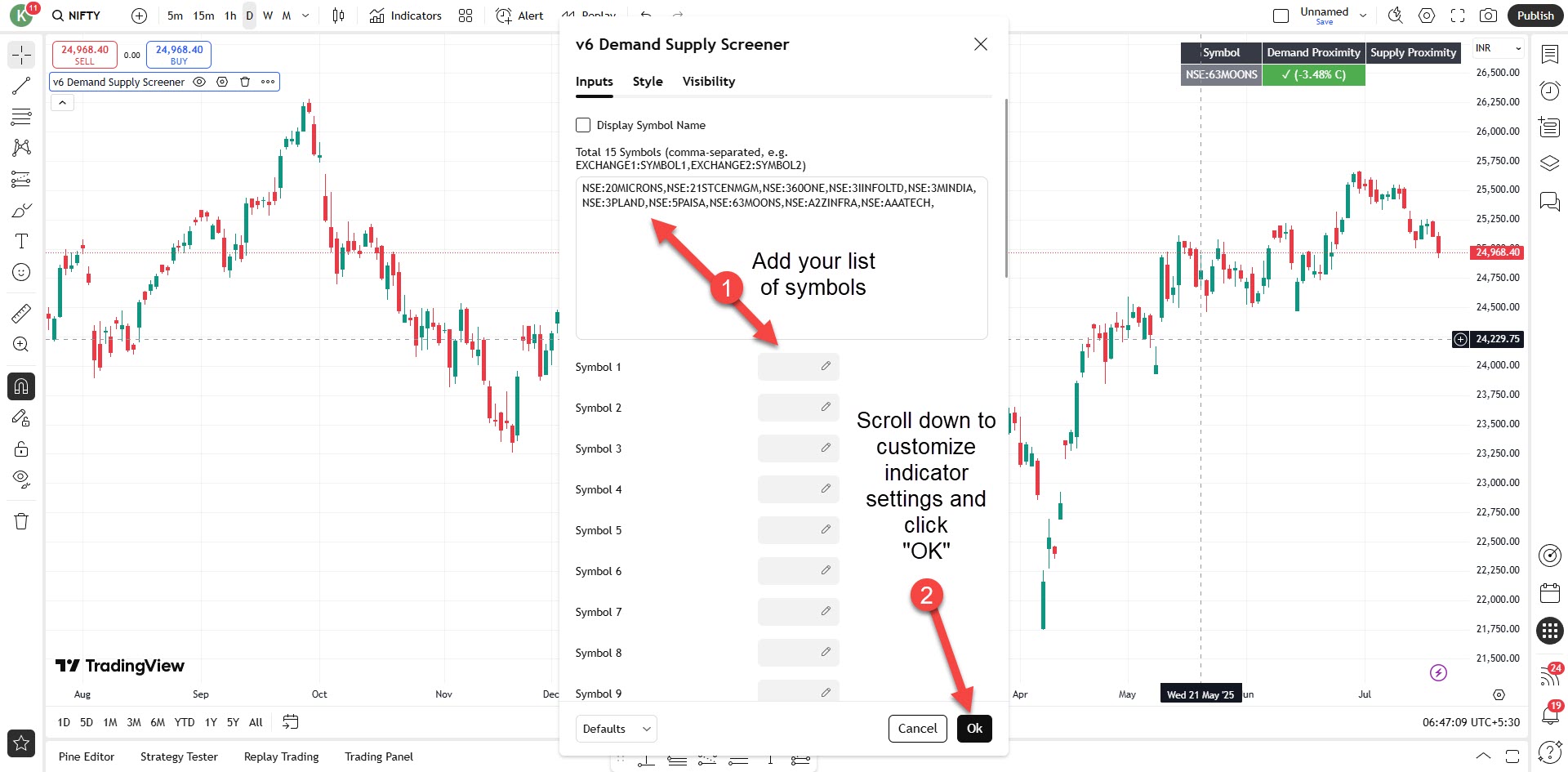
Choose the timeframe for which you want to scan.
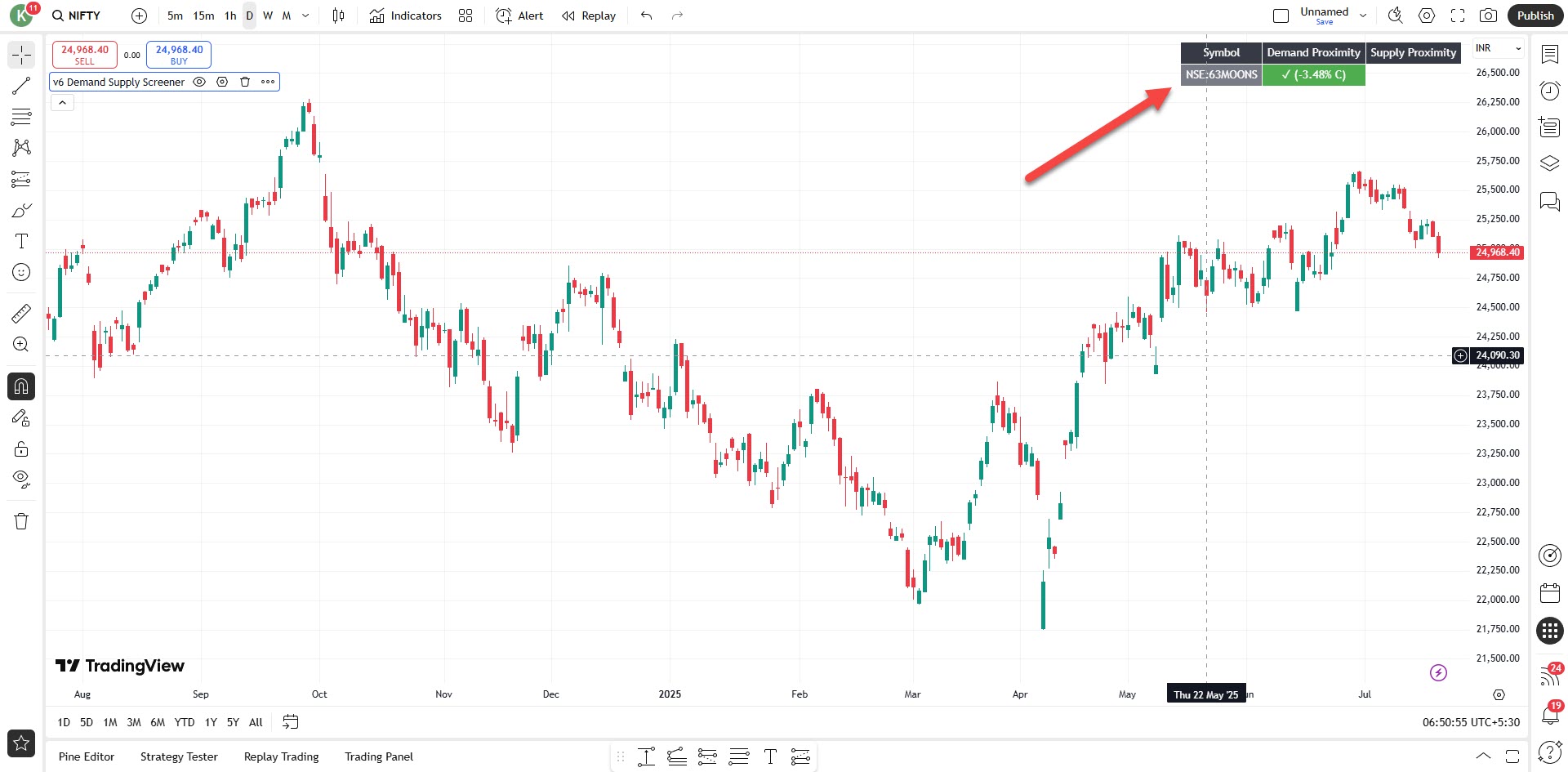
This approach simplifies identifying symbols nearing or trading inside Demand or Supply Zones for informed trading decisions.
All products, indicators, tools, strategies, scanners, content, and services provided by SurjeetKakkar.com are strictly for educational and informational purposes only. They are intended solely as technical analysis and decision-support tools and do not constitute investment advice, trading advice, portfolio management services, or a recommendation to buy or sell any securities, stocks, indices, commodities, forex, crypto, or any other financial instruments.
SurjeetKakkar.com is NOT a SEBI Registered Investment Advisor (RIA) or SEBI Registered Research Analyst (RA). We do not provide any personalized trading advice, stock tips, buy/sell signals, target-stoploss recommendations, or guaranteed/assured returns in any form.
Trading and investing in financial markets involve significant risk, including the risk of partial or complete loss of capital. Past performance is not indicative of future results. No strategy, indicator, or system can guarantee profits.
All users are solely responsible for their own trading and investment decisions. You are strongly advised to consult with a qualified and SEBI-registered financial advisor before making any financial decisions.
By using any product or service from SurjeetKakkar.com, you acknowledge and agree that:
You fully understand the risks involved in trading
You are using all tools and information at your own discretion and risk
SurjeetKakkar.com and its owner shall not be held liable for any losses, damages, legal issues, or financial consequences arising from the use of any product, tool, content, or service
Trading involves substantial risk, including the potential loss of capital. Past performance is not indicative of future results. Users are solely responsible for their trading decisions and are strongly encouraged to consult with a licensed financial advisor before making any trading or investment decisions.
By using the Indicator, you acknowledge this disclaimer and agree to use the tool responsibly and at your own discretion.
for expert insights, market analysis, special promotions, all in one place!
Copyright © www.surjeetkakkar.com, All rights reserved.